How do I get to the Tour Builder?
From the main web site click in the green menu on the left.
Note: If you are not logged in, MapsAlive will prompt you to login before taking you to the Tour Builder.
How do I create a new tour?
Click in the menu.
How do I add a map to a tour?
- Click in the menu.
- Give the map a name or accept the default.
- Choose a or layout.
- Click the Add Map button.
Note: You can copy the settings from another map in the tour when you are adding a new map.
How do I add a hotspot to a map?
Click in the menu.
How do I edit a hotspot?
Click in the menu.
How do I delete a tour?
- Click Tour in the menu.
- Click on the confirmation dialog.
This step displays a second confirmation dialog asking if you really want to delete the tour.
- Click on the second confirmation dialog.
The tour is deleted from your account.
Note: You can also click to see a thumbnail view of all your tours and then click the trash can icon below a tour thumbnail to delete a specific tour.
IMPORTANT: A deleted tour, along with its map and hotspots,
cannot be recovered. It is permanently removed from our database and cannot be restored.
How do I delete a map, gallery, or data sheet?
- Do one of the following:
- Click in the menu. and then click the trash can icon under the map, gallery, or data sheet's thumbnail image.
- Click in the menu to delete the currently selected Map.
- Click in the menu to delete the currently selected Gallery.
- Click in the menu to delete the currently selected Data Sheet.
- Click on the confirmation dialog.
This step displays a second confirmation dialog asking if you really want to delete the map, gallery, or data sheet.
- Click on the second confirmation dialog.
The map, gallery, or data sheet is deleted from the tour.
IMPORTANT: A deleted map, gallery, or data sheet, along with its hotspots, cannot be recovered. It is permanently removed from our database and cannot be restored.
How do I delete a hotspot?
- Click in the menu.
- Click on the confirmation dialog.
To delete multiple hotspots from a map in one operation:
- Click in the menu.
- Check the hotspots you want to delete and then click the button.
To delete multiple hotspots from a gallery in one operation:
- Click in the menu.
- Check the hotspots you want to delete and then click the button.
IMPORTANT: A deleted hotspot cannot be recovered. It is permanently removed from our database and cannot be restored.
How do I publish my tour to the internet?
In order for you and other people to see changes in your tour on the internet, you must first your tour.
- Click in the upper right corner of the Tour Builder banner.
- Click the link in the menu at the top of the screen.
- Click on the confirmation dialog to publish your tour.
This step updates your tour and makes it available on the internet immediately.
Why do you have to publish your tours? Because changes that you make in the Tour Builder are private until you publish. This lets you work on your tour without affecting people who might be viewing your tour on the internet. You can see how the changes look in the Tour Preview. When you are happy with your changes, you publish the tour and the updated tour becomes available on the internet immediately.
How do I find the URL for my tour?
Once you have published your tour, its URL is displayed in the upper right on the screen. You can click the link to view your tour in a new browser window.
The tour URL is also displayed on the screen.
How do I link to my tour from my web site?
There are several ways to integrate your interactive tours with your web site. To learn more please see the
MapsAlive User Guide for Integrating Interactive Maps with Web Pages.
For a specific tour, you can get the exact code you need by clicking and then clicking
at the top of the Tour Preview screen. This displays HTML for the different integration methods that you can copy and paste directly into your own web pages.
How do I download a tour?
- Click in the menu.
- On the , click .
- Click on the confirmation dialog.
- Click on the file save dialog to save the zip file to a location on your computer.
Be sure to read the ReadMe.pdf file in the zip file. It contains important for instructions on how to use your downloaded tour.
Note: You must have a paid plan to download a tour.
How do I make my map zoomable?
- Click in the menu.
- Check .
Once you have made your map zoomable, you can set additional options to change the location of the map inset, set the map inset size, and specify whether to show the zoom and pan controls. To change these options click Options.
Note that you can control the initial zoom and pan settings for your map when your map first displays. To do this click and adjust the zoom and pan settings with the controls in the upper left of the map. Then click the lock icon below the map (the one that says "Lock the current zoom and pan settings" when you mouse over it). Your settings are saved.
How do I set the initial pan and zoom settings for my map?
- Click
- in the upper left of the map to set the initial zoom level and visible area of the map. This step determines the initial zoom level and visible area of your map when this map loads in a browser.
- on the far right of the controls below the map. This step saves the pan and zoom settings for the map.
Note: MapZoom must be enabled before you can set pan and zoom settings. To enable MapZoom click in the menu.
Can I customize the MapZoom controls and inset?
- Click in the menu.
In the MapZoom Options section you can change the location and size of the map inset, specify whether to display the zoom and pan controls, and set the normal and highlight colors of the controls.
How do I change my map image (upload a new map)?
- Click in the menu.
- Click ( button on Safari).
- Choose a new map image from your computer and Click on the dialog.
- Click .
How do I turn off the Title Bar in my tour?
- Click in the menu.
- Uncheck in the Layout Options section.
This step hides the title bar in your tour.
Note that you can also control whether a header and/or footer stripe of color displays in your tour by checking/unchecking the and options.
How do I turn off the header and footer stripes in my tour?
- Click in the menu.
- Uncheck and/or in the Layout Options section.
This step turns off the header and/or footer stripes.
Note that you can also control whether a title bar displays in your tour by checking/unchecking the option.
How do I hide the Menu in my tour?
- Click in the menu.
- Choose from the Menu Location dropdown in the Menu Options section.
How do I add my own tour footer?
- Click in the menu.
- Type your text in the box.
You can include plain text and/or a link to your web site or an email address in your footer. Instructions for how to format the footer can be found by mousing over the Explain box next to the Footer Text field on the Advanced Tour Layout screen.
Note: This feature is included in the Plus and Pro Plans.
How do I choose a new marker for a hotspot?
- Click in the menu.
- Click the dropdown to choose a new marker.
Note: With the
Plus and Pro Plans you can also replace markers for multiple hotspots in one operation by clicking in the menu.
How do I create my own marker styles?
Click in the menu.
How do I upload my own symbols?
- Click in the menu.
- Type a symbol name.
- Click ( button on Safari).
- Select a symbol file from your computer.
- Click on the dialog.
- Click .
Once you upload a symbol into your account is is available in the symbol dropdown lists on the Edit Marker screen. Remember that to use a symbol as a marker you have to create a marker that uses your new symbol.
How can I use a number, letter or symbol that is already on my map image as a marker?
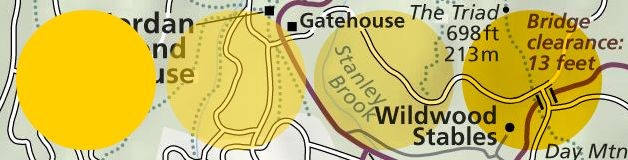
You can take advantage of numbers, letters and symbols that are already
on your map image by creating a shape marker and than placing it over
the number, letter or symbol on the map in MapsAlive. To
create a shape marker:
- Click in the menu.
- Choose or from the Background Shape dropdown. For circles you can set the radius and for rectangles you can set the width and height.
- Choose a to define the normal and selected marker appearance.
Now you can associate your new marker with a hotspot and place the marker over the number, letter or symbol.
How do I change my tour size?
- Click in the menu.
- Select and/or to restrict the canvas area of your tour to a maximum width and/or height, but still allow MapsAlive to choose an optimum layout.
- Select and/or to restrict your tour to a maximum width and/or height, but still allow MapsAlive to choose an optimum layout.
- Select and/or if you want to set your tour to an exact size.
- Type values in the and fields corresponding to the desired tour size.
- Click to preview your changes.
Tip: Only choose Exact for both width and height if your tour must be a specific size. If one dimension needs to be exact, but the other can vary, use Exact for the one and choose Max for the other.
Note: When you set both the width and height to exact dimensions, your map, photo, and text along with any title bar, menu or banner will be placed within the size you choose.
How do I change the layout for my map?
- If your map uses popups, click in the menu.
- If your map uses a tiled layout, click in the menu.
- Choose a layout from the thumbnails displayed.
How do I set my map margins and spacing?
- If the selected map uses popups, click in the menu. This takes you to the Map Margins screen where you can type values for the top, right, bottom, and left map margins.
- If the selected map uses a tiled layout, click in the menu. This takes you to the Margins and Spacing screen where you can adjust the canvas margins and the canvas spacing.
How do I change my popup margins and spacing?
- Click in the menu. This takes you to the Size and Appearance screen where you can adjust the popup margins and the popup spacing.
How do I add a banner to my tour?
- Click .
- Click ( button on Safari) to choose a banner image from your computer.
- Choose a banner image from your computer and click on the dialog.
- Click .
Other options let you specify a URL to go to when the banner is clicked, tooltip text, and whether the web page associated with the banner should open in a new window.
Note: The Banner option is included in the Plus and Pro Plans.
How do I remove a banner from my tour?
- Click .
- Click the link.
Note: The Banner option is included in the
Plus and Pro Plans.
How do I create an unbranded tour?
To create a tour that can be used both branded and unbranded:
- Click in the menu.
- Check in the Advanced Options section. This specifies that you want to be able to use your tour both with and without the banner.
When you publish your tour, MapsAlive automatically creates a URL that you can use to load your tour without the banner. The unbranded tour includes '_' in the URL as shown below:
Branded: tour.mapsalive.com/12345/page1.htm
Unbranded: tour.mapsalive.com/12345/page1_.htm
Note: This feature is included in the Plus and Pro Plans.
How do I show a specific hotspot when my map displays?
- Click in the menu.
- The URL field at the top of the screen shows the URL to use to display that hotspot when the map first displays.
The URL includes a query string with the hotspot id similar to:
tour.mapsalive.com/1234?hotspot=16900
where 12345 is the tour number and 16900 is the Hotspot Id found on the Edit Hotspot Content screen.
How do I switch to popups?
- Click in the menu.
- Click the radio button. This step switches to displaying hotspot content in popups.
How do I switch to a tiled layout?
- Click in the menu.
- Click the radio button. This step switches to displaying hotspot content in alongside the map in a tiled layout.
How do I link to a web page when I click a marker?
- Click in the menu.
- Choose from the Click Action dropdown. This displays a text box that lets you type in the URL. You can also choose whether to open the URL in a new window.
How do I add a hyperlink to my hotspot text?
- Click in the menu.
- In the Text area, click the button in the row of controls above the text area – it looks like a globe with a chain link.
- Type the for the web page you want to link to and enter the you want to display.
- If you want the new web page to open in a new window select New Window from the Target dropdown on the Hyperlink tab.
- To remove a hyperlink, click the Remove Link button in the row of controls above the text area – it looks like a globe with a broken chain link.
- If you want to enter an email link, click the E-mail tab in the Hyperlink Manager window.
How do I embed an HTML document or web page in my hotspot content?
You can embed an HTML document or web page in your hotspot content by pasting the HTML code directly into your hotspot's content.
- Click in the menu.
- Choose from the Media dropdown on the Hotspot Content screen. This step changes the hotspot content type from Photo to Multimedia and displays the Multimedia field. Note that changing the hotspot type to Multimedia removes the photo, if any.
- Paste your HTML code into the Multimedia field and click .
You can paste HTML for one of these tags: object, embed, applet, or iframe. You cannot use any other HTML tags in the Multimedia field and you can only include one complete tag per hotspot. Any HTML that appears after the closing tag for one of the supported tags is automatically truncated.
For example, here is the HTML code to embed the Google home page into a hotspot's content:
<iframe src="http://www.google.com" target="_blank" width="425" height="300"></iframe>
How do I add a directory to my tour?
- Click in the menu.
- Check the option.
You can customize the directory using additional fields on the Directory Options screen. The Explain boxes for each field describe the different options.
Note: The Directory feature is included in the Plus and Pro Plans.
How do I turn off the directory?
- Click in the menu.
- Uncheck the option.
Note: The Directory feature is included in the
Plus and Pro Plans.
How do I control the position of the directory in my tour?
- Click in the menu.
- Choose from the dropdown.
- Choose to position the directory somewhere other than the built-in locations. You can specify the X and Y offsets to place the directory anywhere within your web page, including outside the tour boundaries. Use negative offsets to position the directory above or to the left of your tour.
Note: The Directory feature is included in the
Plus and Pro Plans.
How do change the directory colors?
- Click in the menu.
Note: The Directory feature is included in the
Plus and Pro Plans.
How do I turn off the directory search box?
- Click in the menu.
- Uncheck the checkbox.
You can customize the directory using additional fields on the Directory Options screen. The Explain boxes for each field describe the different options.
Note: The Directory feature is included in the Plus and Pro Plans.
How do I exclude a hotspot from the directory?
- Click in the menu.
- Check the checkbox. This removes this hotspot from the directory.
Note: The Directory feature is included in the
Plus and Pro Plans.
How do I add a new category?
- Click in the menu.
- Choose a category name, code, type and position.
To assign a hotspot to one or more categories click .
Note: The Category feature is included in the Plus and Pro Plans.
How do I assign a category to a hotspot?
- Click in the menu.
- Check the categories in the Category List. This assigns the selected category or categories to the hotspot. You can choose more than one category for a hotspot.
Note: The Category feature is included in the
Plus and Pro Plans.
How do I embed a Google map in a hotspot's content?
First, you go to Google maps and search for the map location you are interested in, and then set the zoom level. You can get the HTML you need from the Google map site by clicking the "Link" link above the map on the right. Copy the HTML provided and paste the code into your hotspot's content. If your favorite map site provides similar HTML code you can embed other maps as well.
To embed the Google map, follow these steps:
- Click in the menu.
- Choose from the Media dropdown on the Hotspot Content screen.
This step changes the hotspot content type from Photo to Multimedia and
displays the Multimedia field. Note that changing the hotspot type to
Multimedia removes the photo, if any.
- Paste the HTML code for the Google map into the Video field and click Save.
How do I use the flash-macro to add video to a hotspot?
Use the
flash-macro if you know the url, width, and height of your Flash video. If you have the HTML embed code provided by many video hosting sites such as YouTube, use the Multimedia field on the Edit Hotspot Content page instead.
Note: Your Flash video must already be hosted on a server somewhere such as YouTube or your own server. You cannot upload a flash movie directly to MapsAlive.
How do I use the iframe-macro to embed a web page?
You can display any HTML document or web page in your hotspot's content with the iframe-macro. You could use the iframe-macro to display another interactive MapsAlive tour or a web page with content that changes frequently.
Important: Firefox on the Mac will not display the contents of an iframe in a popup correctly. If this is an issue for you, consider using the iframe-macro with a tiled layout which does display correctly on all browsers.
To learn how to use the iframe-macro, see the
MapsAlive User Guide for Macros.
How do I use the image-macro?
You can display multiple images for the same hotspot with the image-macro. By design, the Edit Hotspot Content page only lets you upload one image per hotspot, but if you want to display more than one image per hotspot, you can embed them in the hotspot’s Text field. This gives you more flexibility when creating hotspot content, and is also useful if you are using a text-only layout, but have just one or two hotspots with images.
To learn how to use the image-macro, see the
MapsAlive User Guide for Macros.
How do I use the tour-macro to display another tour?
You can display another interactive MapsAlive tour within a hotspot's content using the
tour-macro. The tour-macro makes it easy to embed a tour within a tour when you know the tour number
and the tour is in the same MapsAlive account as the tour using the macro.
To learn how to use the tour-macro, see the
MapsAlive User Guide for Macros.
How do I link to another map in my tour from a hotspot?
You can include a hyperlink to another map, gallery, or data sheet in your tour within the text of a hotspot's content with the linkto-macro. This allows users to navigate to other maps, galleries, and data sheets in your tour from a hotspot's text content without using the built-in MapsAlive menu or a specific marker on your map.
To learn how to use the linkto-macro, see the
MapsAlive User Guide for Macros.
How do I make the map zoom when a marker is clicked?
You can use the JavaScript API to make the map zoom in when a marker is clicked. To do this
- Click in the menu.
- Choose in the Click Action dropdown list.
- Add the following JavaScript API calls to the JavaScript text area:
mapsalive.setMapZoomLevel(100);
mapsalive.setMarkerSelected("h2");
This first call zooms the map to 100%. The second call will cause the map position to shift if necessary to make sure the marker is visible at 100% zoom. Replace "h2" with the Hotspot Id for the marker.
To learn more about the JavaScript API, see the
MapsAlive User Guide for JavaScript API.
How do I make a tour private?
-
Choose in the menu.
- On the screen, check the box in the section.
- If the tour has already been published, click the button. This will delete the published tour so that it is no longer accessible on the internet.
Note: The private option is a
Pro Plan feature.
How do I archive (backup) a tour?
- Choose in the menu.
- On the screen, click the link.
- Click on the confirmation dialog.
- On the download dialog, choose where you want to save the archive file.
Note: All MapsAlive plans can import archive files, but you need a
Pro Plan to export an archive.
How do I import (restore) an archived tour?
- Choose in the menu.
- On the screen, browse for the archive file on your computer.
- Click the button.
After the import has completed, you can start working with the tour or click to view it.
Note: All MapsAlive plans can import archive files, but you need a
Pro Plan to export an archive.
Can I share an archived tour with other people?
Yes. You can archive your tours and give them to other MapsAlive users and you can import archived tours that other users have created. Some of the sample tours on the MapsAlive site are available as archive files so that you can import them into your account to see how they work.
Note: All MapsAlive plans can import archive files, but you need a Pro Plan to export an archive.
How do I choose a Ready Map?
- Click in the menu.
- Click the radio button.
- Click to expand the Ready Map tree to find the map image you want.
- Click on the confirmation dialog.
If this is a new Ready Map, the Import Marker Shapes screen will be displayed. You can select from the shapes available for the Ready Map you are using and MapsAlive will automatically create shape markers and place them on your map.
How do I get shape markers for a Ready Map?
- Click in the menu.
- Choose a from the dropdown list. Each shape marker that is imported will use this marker style.
- Click one of the shape sets highlighted in yellow.
- Click on the confirmation dialog.
- You can only choose shapes that correspond to the Ready Map you have chosen.
- You must choose a Ready Map before you can import the corresponding shapes.
- You can change the marker style for some or all of the shape markers later by clicking in the menu.
How do I embed an interactive map into a web page?
Everything you need to know is in the
MapsAlive User Guide for Integrating Interactive Maps with Web Pages.
For a specific tour, you can get the exact code you need by clicking and then clicking at the top of the Tour Preview screen. This displays HTML for the different integration methods that you can copy and paste directly into your own web pages.
How do I add a photo and text for a hotspot?
- Click in the menu.
- To upload a photo, click and choose an image from your computer. Click .
- To add text, type in the area.
If you have a lot of photos and/or text content the Import features in MapsAlive could save you time. You can import a zip file of images and you can import other hotspot content from an Excel spreadsheet, CSV, or XML file. To learn more see the
MapsAlive User Guide for Content Management.
How do I display a video for a hotspot?
- Click in the menu.
- Choose from the Media dropdown on the Hotspot Content screen. This step changes the hotspot content type from Photo to Multimedia and
displays the Multimedia field. Note that changing the hotspot type to
Multimedia removes the photo, if any.
- Paste the HTML code for your video into the Video field and click Save.
Note: Your video must already be hosted on a server somewhere such as
YouTube or your own server. You cannot upload a video or movie directly
to MapsAlive.
How do I add a tooltip to a hotspot?
- Click .
- Type the tooltip text in the tooltip field at the bottom of the screen.
Note: Normally tooltips display for hotspots only when you are using a tiled layout and not for hotspots that display popups. However, you can display a tooltip for a hotspot that uses popups if you check the Show Tooltip When No Hotspot Content box on the Popup Behavior screen.
How do I create a new tooltip style?
Click in the menu.
How do I choose a new tooltip style for my map?
- Click in the menu.
- Select a new style from the dropdown.
Note: The tooltip style applies to all hotspots on the same map.
How do I display my hotspot content as a slide show?
- Click in the menu.
- Check the checkbox.
When the box is checked, the content for each hotspot on the map displays for the number of seconds you choose from the dropdown. The slide show stops automatically when you mouse over a marker.
Note: You can specify the order in which hotspots display using the list.
How do I change the order of hotspots in a slide show?
- Click in the menu.
- Use the list to move hotspots up or down in the list to order them the way you want.
How do I use a font style?
To assign a font style to a Photo Marker or Text Marker:
- Click in the menu.
- Click the marker name in the list to go to the screen.
- Select the font from the dropdown.
Note: A Photo Marker must have a Photo Caption in order to assign a font style because the font style applies to the caption.
To assign a font style to a Tooltip style:
- Click in the menu.
- Click the tooltip style name in the list to go to the screen.
- Select the font from the dropdown.
How do I replace multiple marker styles at once?
- Click in the menu.
- Choose a new style from the dropdown.
- Check the box next to the hotspots for which you want to replace the marker style.
- Click .
Note: Only those hotspots that use shape markers, text markers, or photo markers will be displayed in the list.
Note: The Replace Marker Styles feature is included in the
Plus and Pro Plans.
How do I replace multiple markers at once?
- Click in the menu.
- Choose a new marker from the dropdown.
- Check the box next to the hotspots for which you want to replace the marker.
- Click .
Note: The Replace Markers feature is included in the
Plus and Pro Plans.
How do I add effects to a marker?
- Click in the menu.
- Click the marker style name in the list to go to the screen.
- Add the effects to the Normal Effects and Selected Effects fields.
To learn about what effects and options are available see the
MapsAlive User Guide to the JavaScript API.
How do I create my own font styles?
Click in the menu.
How do I import marker shapes?
- Click in the menu.
- Choose a from the dropdown.
- Browse (Choose File on the Mac) for your file containing marker shape definitions.
- Click .
Note: The Import Marker Shapes feature is included in the
Plus and Pro Plans.
How do I import photos in bulk?
- Click in the menu.
- Choose a from the dropdown.
- Browse (Choose File on the Mac) for your zip file containing photos.
- Click .
How do I create my own markers?
Click in the menu.
How do I import hotspot content?
- Click in the menu.
- Browse for (Choose File on the Mac) the file containing the content you want to upload.
- Choose a marker for new hotspots from the dropdown.
- Click .
To learn more, see the
MapsAlive User Guide to Content Management.
Note: The Import Hotspot Content feature is included in the
Plus and Pro Plans.
How do I export resources?
- Click in the menu.
- Click to download an XML file containing an archive of the resources in this tour.
- Click to download an XML file containing an archive of all the resources in your account.
- Click on the confirmation dialog.
- Save the file to a location on your computer.
To learn more, see the
MapsAlive User Guide to Content Management.
Note: The Export Resources feature is included in the
Pro Plan.
How do I export hotspot content for my tour?
- Click in the menu.
- Click to download a CSV file containing the content and actions of this tour's hotspots.
- Click to download an XML file containing the content and actions of this tour's hotspots.
- Click on the confirmation dialog.
- Save the file to a location on your computer.
To learn more, see the
MapsAlive User Guide to Content Management.
Note: The Export Hotspot Content feature is included in the
Plus and Pro Plans.
How do I choose a different menu style?
- Click in the menu.
- Choose a style from the dropdown in the Menu Options section.
- Choose a location from the dropdown.
How do I access the advanced marker features?
Choose in the menu.
The advanced marker options are in the and sections.
How do I create my own color scheme?
Click in the menu.
How do I change my tour's color scheme?
- Click in the menu.
- Choose a from the dropdown.
Tip: You can switch to a color scheme that you are currently editing by clicking the link above the preview on the Edit Color Scheme page. This lets you update your tour's color scheme without having to go to Tour Setup.
Can I make a copy of a color scheme?
Yes. Making a copy is a good way to customize a color scheme without modifying the original.
- Click in the menu.
- Click the name of the color scheme you want to duplicate.
- Click in the menu.
Can I make a copy of a marker?
Yes. Making a copy is a good way to customize a marker without modifying the original.
- Click in the menu.
- Click the name of the marker you want to duplicate.
- Click in the menu.
Can I make a copy of a marker style?
Yes. Making a copy is a good way to customize a marker style without modifying the original.
- Click in the menu.
- Click the name of the marker style you want to duplicate.
- Click in the menu.
Can I make a copy of a font style?
Yes. Making a copy is a good way to customize a font style without modifying the original.
- Click in the menu.
- Click the name of the font style you want to duplicate.
- Click in the menu.
How do I choose a marker style for a marker?
- Click in the menu.
- Click the marker name in the list to go to the screen.
- Select the marker style from the dropdown.
Note: You can only assign a marker style to a shape, text, or photo marker. Symbol markers do not have marker styles.
Can I edit the HTML for my hotspot text?
Yes.
- Click in the menu.
- Click the link above the text editor.
- Click to switch back.
How do I turn off the Tour Advisor?
- Click in the menu.
- Check .
You can turn it back on again by unchecking the box.
How do I duplicate a tour?
Click in the menu.
Note: The Duplicate Tour feature is included in the Pro Plan.
How do I play a sound (audio)?
See the SoundManager section in the
MapsAlive User Guide for JavaScript API.
Note: The MP3 files containing your sounds must be located at a URL somewhere on the internet. MapsAlive does not provide a way for you to upload or store audio files.
How do I create a gallery?
To create a new tour with a gallery, follow these steps:
- Choose in the menu.
- Choose the radio button.
- Click on the screen.
To add a gallery to an existing tour, follow these steps:
- Choose in the menu.
- Click on the screen.
How do I add Custom HTML to my tour?
Choose in the menu.
You can add CSS, JavaScript, and HTML in the text boxes on the Custom HTML screen.
How do I add a data sheet to a tour?
- Click in the menu.
- Give the data sheet a name.
- Upload a photo and/or type text for your data sheet.
How do I specify the path of a route?
You specify a route's path by listing which hotspots it travels through. You can do this either by passing a list of hotspot Ids to the drawRoute JavaScript API function, or you can import routes from an Excel spreadsheet. Both of these techniques and a lot more are covered in the MapsAlive User Guide for Drawing Routes.
How do I draw a route?
You draw a route by calling the drawRoute JavaScript API function. To learn more, see the MapsAlive User Guide for the JavaScript API and also the MapsAlive User Guide for Drawing Routes.
How do I draw more than one route?
You can draw multiple routes by creating multiple route hotspots and calling the drawRoute function on each. You can see how this works in the first route drawing example in the MapsAlive User Guide for the Drawing Routes.
How do I change the appearance of a route?
You can control the appearance of a route using functions provided in the MapsAlive JavaScript API. The drawRoute function lets you pass parameters to control the thickness of a route, its color, opacity, and effects like shadow or glow. You can also make a route visible or invisible by using the setMarkerHidden function, or even make a route blink by using the setMarkerBlink function. To learn more, see the MapsAlive User Guide for the JavaScript API.
How can I make my Ready Map more colorful?
You can change the appearance of your map by choosing different marker styles for some or all of the shape markers on your map. Marker styles define the fill color and fill opacity, line color and line opacity, and effects for both the normal and selected appearance of the the shapes.
You can choose a marker style when you import the shapes for your Ready Map. To change some or all of the marker styles for your map after you have imported them:
- Click in the menu.
- Check the boxes for the hotspots you want to give a new marker style to and select a new marker style from the dropdown list.
- Click the button.
How do I assign an action to a mouse event for a hotspot?
- Click in the menu.
- Choose an action from one or more of the action dropdown lists (click, mouseover, or mouseout).
- Provide information about the action e.g. a URL to open in a browser window or JavaScript code to execute.