Interactive Restaurant Menus Attract Hungry Diners

by George Soules 22. June 2011 08:00

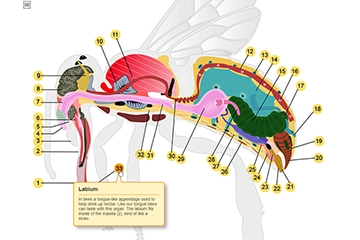
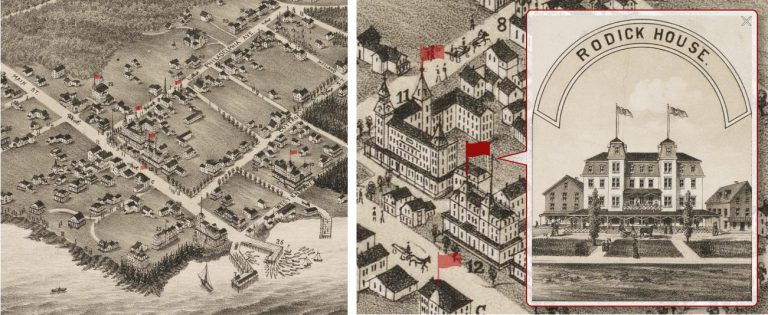
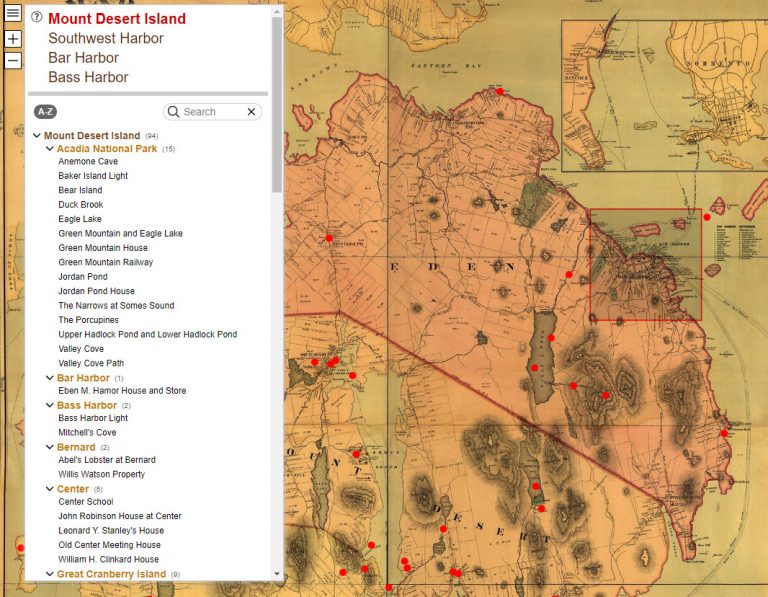
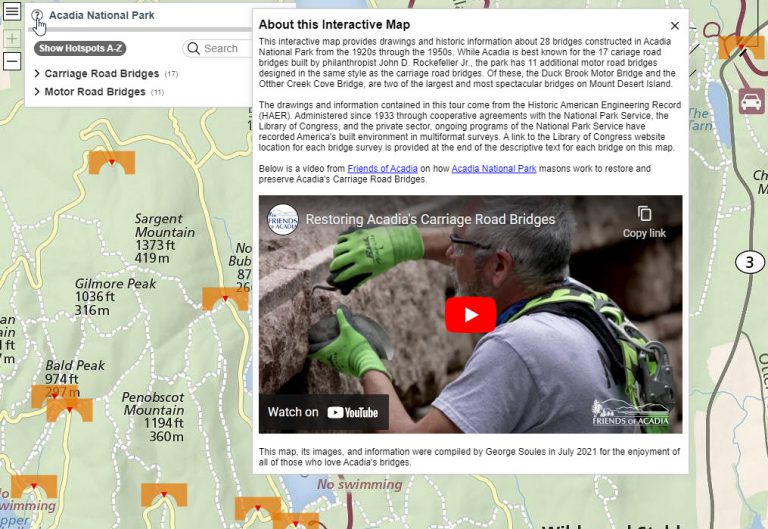
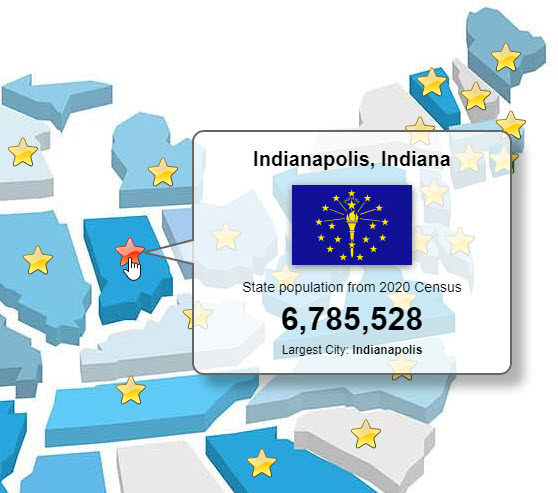
Hi everyone. We've just added a new page to the MapsAlive web site devoted entirely to interactive restaurant menus. We've also created 12 samples showing different ways that menus can look, behave, and be integrated with your web site.

Here's a screenshot showing one of the samples:

Interactive Restaurant Menu Sample


Why do interactive menus work so well?

An interactive restaurant menu looks just like the menu you already have on your web site with one big difference. Your current menu just sits there, but an interactive menu displays a photograph of each food item when you move your mouse over an entrée name – or when you touch it on an iPhone, iPad, or other mobile device. When I demonstrate an interactive menu to someone I hear the same response nearly every single time: "Hmmm, that’s making me hungry!" And they’re not just saying that.

It's a well known fact that people experience a physical sensation in response to a visual stimulus that reminds them of something pleasurable, like food!  By adding an interactive menu to your web site, you can take advantage of human nature as part of your marketing efforts. There’s probably no other single improvement you can make to your web site than to show off your cuisine with photographs.

Where to find the samples

To try any of our 12 new working examples of interactive restaurant menus, and to see a step-by-step tutorial on how to create one, visit http://www.mapsalive.com/LearningCenter/RestaurantMenus.aspx.

How To Add Interactive Maps to Your Facebook Page

by Janice Kenyon 14. June 2011 11:15

Now you can add interactive maps, floor plans, photo Galleries, or interactive restaurant menus – anything created with MapsAlive – to your Facebook business page. You use the same iFrame code that you would use if you were embedding your map in your own web page. Suddenly your Facebook page becomes a powerful marketing tool without costing you anything.

How does this work?

Facebook recently made it really easy to display any kind of content using an iFrame application. An iFrame application lets you display any web page on a Facebook tab. You can have up to twelve custom tabs and you can display interactive content or any HTML, CSS and JavaScript. Just be sure your interactive map or other content is 520 pixels wide or less if you want to avoid horizontal scroll bars.

Here's how to add an interactive map to a Facebook tab

First you add a free application called "Static HTML: iframe tabs" to your business page. Then you add your interactive map or other content to the tab and customize it. Follow these easy steps to make this work.

Step 1 – Add the application
  1. Log in to your personal Facebook account.
  2. Search for and select Static HTML: iframe tabs.
  3. Click Go to App on the Static HTML: iframe tabs screen (Figure 1).

    Note: if you have more than one Facebook business page you will be asked to select the page for the custom tab from a drop down list.

  4. The custom tab is added to your tab list on the left side of your Facebook page. Custom tabs added with the Static HTML app display a star icon before their name. The default name is Welcome (Figure 2), but you can rename it later. 
Step 2 – Add your interactive map to the tab 
  1. Go to the Tour Preview screen for your MapsAlive tour and click Show Code Snippets.
  2. Copy the iFrame embed code from section 4 of the Code Snippets.
  3. Go back to your Facebook page and click the Welcome tab name in the tab list (Figure 2).
  4. Paste the iFrame embed code from your MapsAlive tour into the top content box (Figure 3).
  5. Click Save and view tab...
  6. Click View your tab as a non-fan... to see what your new tab looks like.

You can add additional HTML, CSS and JavaScript in the content box if you want to include a description, links to other pages or other information.

You can also display different content for fans or non-fans if you like. You might do this to entice non-fans to like your page in order to view the fan-only content.


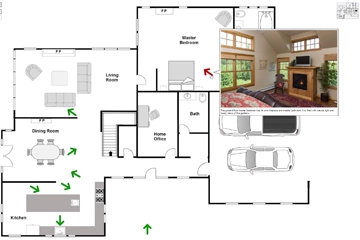
The new tab for the code shown in Figure 3 displays a fully interactive floor plan and looks like this:

Note that if your interactive map uses popups they will only display within the bounds of the iframe. For many maps this is not a problem, but you might want to consider using a tiled layout like the example here to be sure viewers can see all of your hotspot content.

Here are some other ways to customize your new tab:

To rename the tab — go to your business page and click Edit Page and then choose Apps from the list of tabs on the left. Find Static HTML: iframe tabs in the list of Apps and click Edit Settings.

To change the position of the tab in the list — while viewing your page, click Edit at the bottom of the tab list on the left. Drag the tab name up or down.

Add another custom tab — while editing a custom tab, click the gold FAQ & Help Center link at the top of the page (Figure 3). Expand "How do I add more than one tab" and click on Second tab (or Third, etc.). There are other good tips and instructions for using custom tabs in this section as well.

I hope you have fun with this — enjoy!

Need an interactive map but don't have time to DIY?

by George Soules 2. June 2011 12:30

Let the interactive map experts do it for you

Here at MapsAlive we live, breath, and eat interactive maps, floor plans, diagrams, and photo galleries. If you want to add interactive floor plans or maps to your web site, but you just don't have the time to do it yourself, let us help. We can do a little or a lot – whatever you need.

How we can help you

Depending on your needs and budget we can work with you in any of these ways:

MapsAlive Custom Services
So much to do, so little time
  • Set up a framework and hand it over to you to add your content. We do the heavy lifting and you do the fine-tuning.
  • Deliver a full interactive map solution ready to integrate into your web site. You provide the specification or we can work with you to develop one.
  • Create custom shapes for things that are already on your map like sales territories or building outlines.
  • Programming in JavaScript, HTML, and CSS to make your interactive maps do something really special.
  • Figure out a solution for how your map should work and how you can best integrate it with a larger overall solution.

How it works

You tell us what you want and how much you can afford to spend. You also provide us with your map images, photos, text – anything you want for your clickable map. We put it all together, test it on the major browsers and on iPad and iPhone, and then hand it back to you to add to your web site. Usually a few phones calls and emails is all it takes for small jobs. You get a high quality result that you can maintain yourself when changes are needed.

To learn more, vist the custom services page on the MapsAlive web site.

28 Uses for Interactive Maps

by Janice Kenyon 28. February 2011 10:59

What comes to mind when you picture an interactive map? Perhaps you envision a clickable map of the United States, a map showing the location of all your favorite donut shops, or maybe a Google map.

But, there are dozens of ways to use interactive maps to spice up your web site and provide useful information to your visitors. Interactive maps can display photos, text or video related to locations on the map and you can click to link to other maps or web pages to see more detailed information. Since you can use any image as a map and display pretty much anything you want when you mouse over hotspots, the sky is the limit.

Here are some common and not so common ideas for interactive maps:

Real Estate Maps

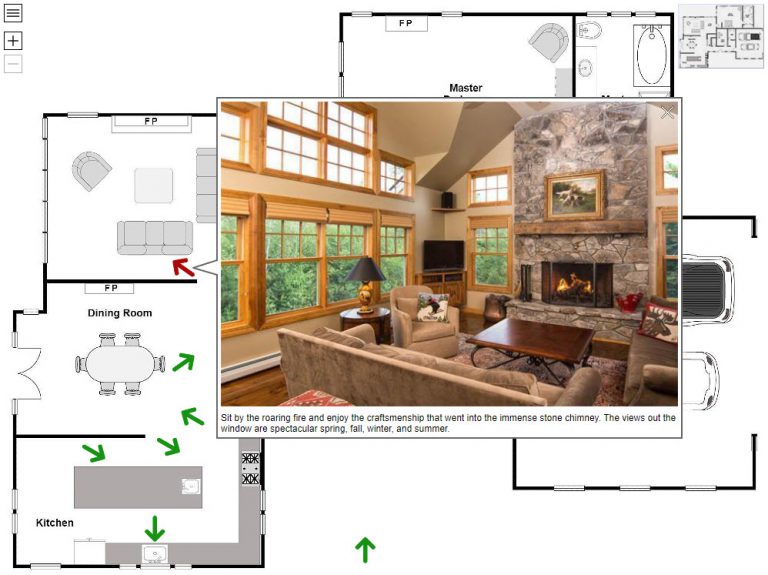
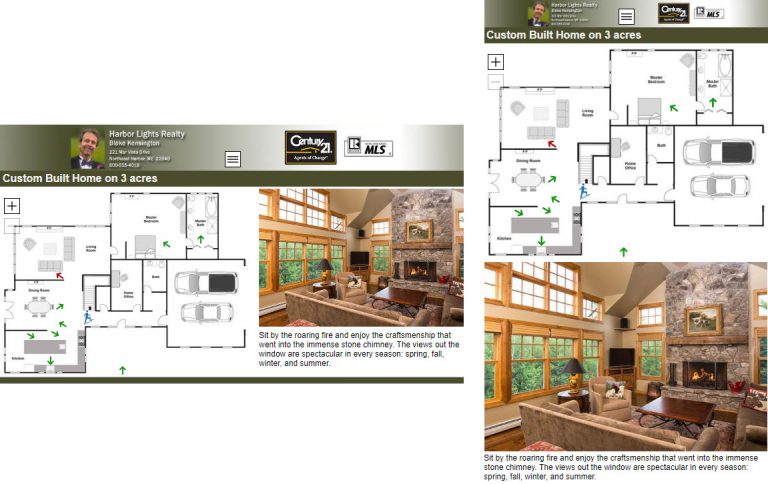
  • Interactive floor plans are the next best thing to being there.
  • Location maps can show where one or more homes are located.
  • Subdivision maps can show available lots, price, size and other features for each lot.
  • Aerial photographs of a neighborhood help locate schools, shopping or other attractions.
  • Vacation rental properties – give viewers a sense of the area.

Travel & Tourism Maps

  • Stylized city maps can show lodging, restaurants and attractions.
  • Show cruise ship routes with photos and descriptions of ports of call.
  • Create an interactive tour of the cruise ship itself to help people see the layout and amenities.
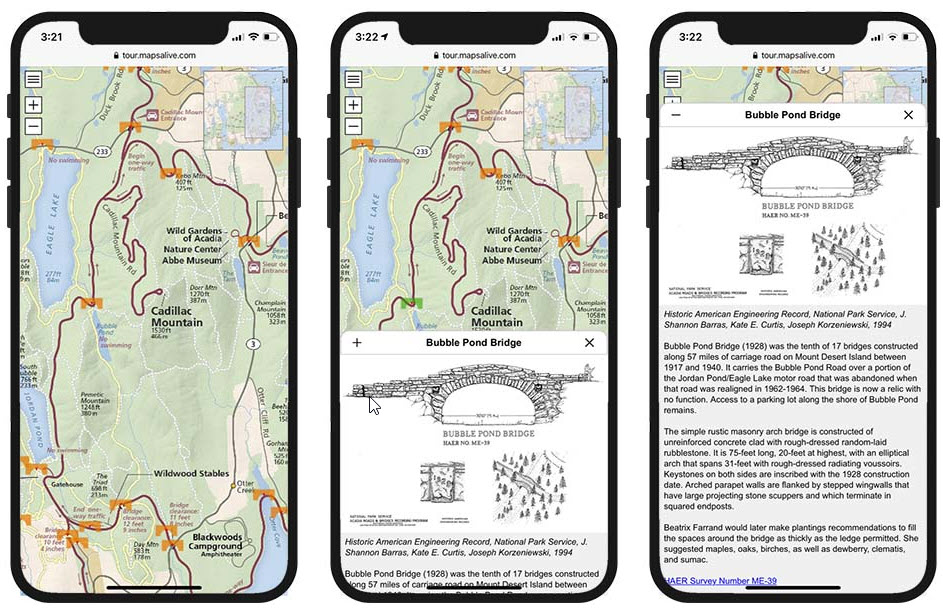
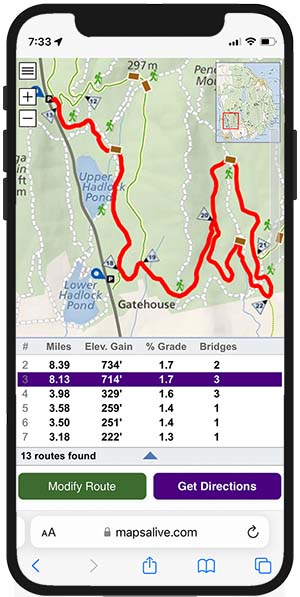
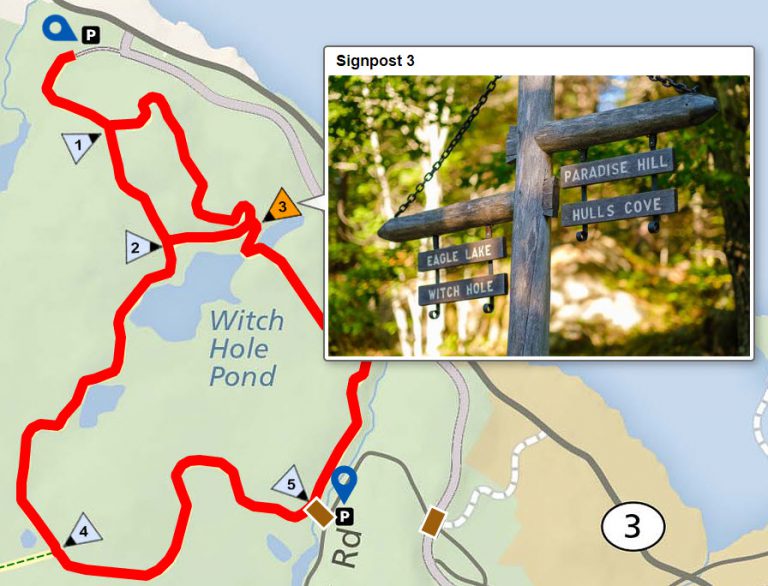
  • Hiking trails can show routes and terrain.
  • Bicycle tour maps – show routes, points of interest, distances and overnight stops.
  • Interactive maps of theme parks can highlight rides, shows or activities.
  • Campground maps can help people choose sites and see what the park is like.
  • Resort maps – entice people to book a stay with you.

Interactive Facilities, Museum and Campus Maps

  • Mall maps help people locate stores and services, and help them decide where to park.
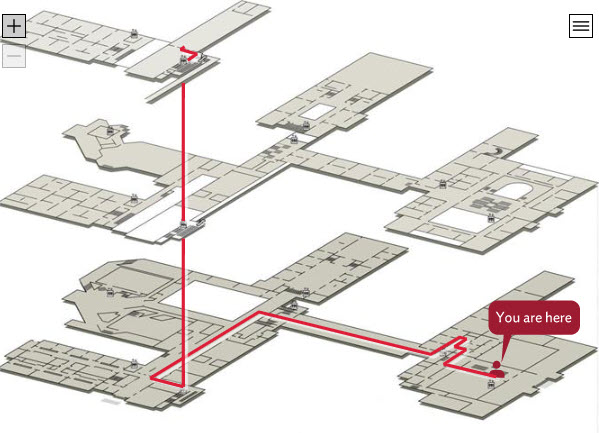
  • An interactive hospital floorplan can make it easier to navigate multiple buildings, corridors and elevators.
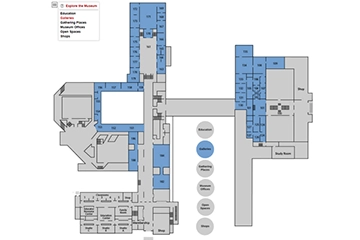
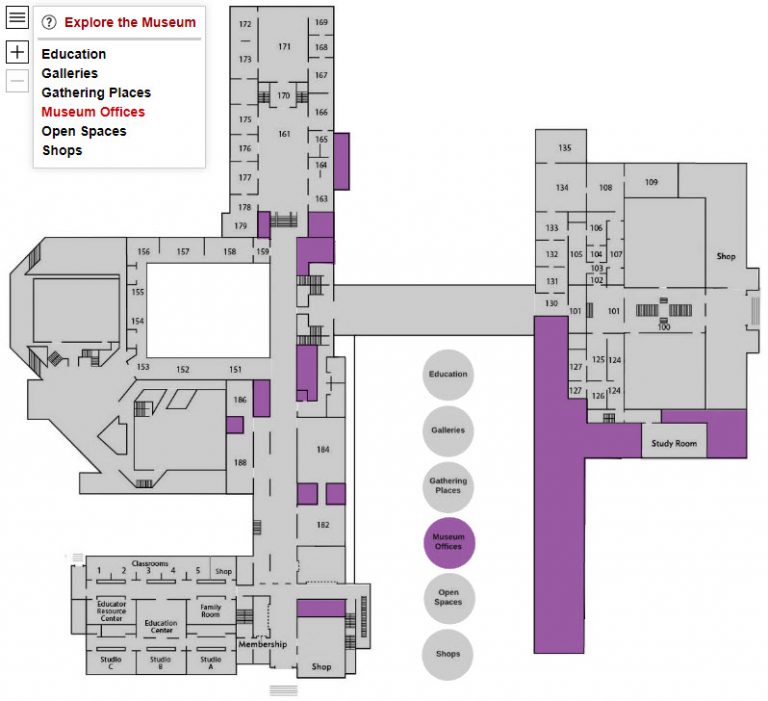
  • Interactive museum maps can show galleries, special exhibits, shops and restaurants.
  • Health club maps can show equipment rooms, pools, dance studios and more.
  • Exhibitions, trade shows, or conventions can use interactive maps to sell booths to vendors and show visitors where to find the companies or exhibitors they are interested in.
  • Golf course maps can show photographs of each hole and include the yardage and statistics.
  • Campus maps help people learn about a school and find the building they are looking for.

Interactive Diagrams and Charts

  • Interactive parts diagrams can help people identify replacement parts.
  • Educational diagrams are ideal for students or for explaining complex products and services.
  • Interactive org charts can show your company structure.
  • Turn sketches, exploded views and 3D renderings into interactive tools.

Some unusual examples

  • Promote your music with an interactive CD cover – play audio clips when you move over tracks.
  • Create an interactive restaurant menu with beautiful food pictures to tempt people to come to your restaurant.
  • Create an interactive gallery to show off your photographs or artwork.
  • Make an interactive timeline of historical events, progress on a construction project or your travels across Europe.

These are just a few ideas – what kind of interactive map would you create?

5 Reasons to Love AT&T (and 10 Reasons Why Not)

by George Soules 16. February 2011 07:00

I'm ready to pitch my AT&T MicroCell out the window, but if I do, I might as well throw my iPhone with it.

The MicroCell is a device that connects to your DSL and acts like a mini cell tower in your house. Here in the middle of nowhere it gives me five bars instead of “No Service” and allows me to text and make calls just like city folk. If you have marginal cell reception, you should get one of these babies, or maybe not.

I bought mine last June from the AT&T store in Montpelier, Vermont. It was easy to set up and worked well for six months and then one day it just stopped connecting to the 3G network.

Following is the saga of what happened next.

5 reasons to love AT&T

1. They print their technical support number in the user manual and encourage you to call it. I did.

2. You only have to wait a minute before a U.S. based native English speaker answers the phone.

3. Everyone at AT&T is very nice and very apologetic. You get the sense that they care.

4. They sent me a replacement overnight at no charge and included a prepaid return shipping label.

5. I can’t think of a fifth reason, but when my mother passed away, I racked up a huge phone bill calling relatives and making arrangements. I explained the circumstances to a compassionate AT&T rep who credited me for all the calls and gave me a thousand free minutes so I wouldn't incur more charges. I still love AT&T for that kindness despite what follows.

10 reasons not to love AT&T

1. The new MicroCell arrived in a crushed box containing one small piece of bubble wrap. Amazingly it survived.

2. I couldn’t register the new unit’s serial number because AT&T had not added it to their database.

3. When I left a message for help, AT&T called me back on my cell phone instead of my land line contact number. Hello! Did I mention that the cell phone doesn't work without the MicroCell? Unable to reach me, they closed my issue as resolved.

4. I called again. Olene at AT&T told me I had to contact the store where I bought the MicroCell. The phone number at the AT&T store was always busy and there was no voice mail to leave a message.

5. I tweeted AT&T for help, but they didn't reply. So I kept calling and when I finally got through, John at the AT&T store gave me another number to call.

6. Christina answered next and asked why I was calling AT&T instead of “the MicroCell people.” She had never heard of the MicroCell and didn't know it was an AT&T product. She gave me another number to call.

7. Patiently I called the new number. It was answered by Sarah who had never heard of Vermont. She kept asking "where?" and gave me another number to call.

8. When Susan answered she immediately asked “How did you get this number?” Susan doesn't work for AT&T and said that AT&T has been giving out her number by mistake and had even printed it in their literature.

9. I called one of the other AT&T numbers I had been accumulating and miraculously reached Jason, the one guy in the whole company who knows about the MicroCell. He remote connected to my network and fixed the problem, but said I would have to wait 90 minutes for the MicroCell to boot. He gave me a number to call back if it still didn’t work.

10. Guess what? It still doesn’t work. When I called back, the phone at AT&T rang and rang and rang, then a scratchy recording played “Your party is not answering. Please try your call later.” and hung up on me.

If I ever get the problem resolved, I’ll let you know, but don’t hold your breath. I'm not.

Tags:

General

Using Interactive Locator Maps on Your Web Site

by Janice Kenyon 9. February 2011 08:51

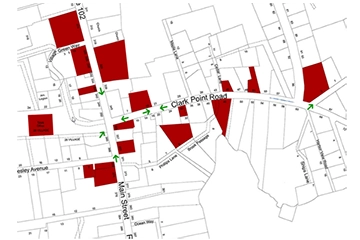
Locator maps are used to show all the places your business operates such as stores, sales offices, warehouses and shipping facilities. Adding an interactive locator map to your web site can help visitors find and learn about different locations. They can click or mouse over hotspots to see a photo, watch a video, read descriptions or get contact information. Interactive locator maps are fun to use and make your web site look more professional.

Keep your interactive map simple

The most effective locator maps are simple and easy to understand. The map image you choose should show only enough detail to make locations easily recognizable. Often people just want to know whether you have an office in their state or a store near their city. A simple map makes it easy to tell at a glance and then they can click on that location to get more information.

Make your map clickable

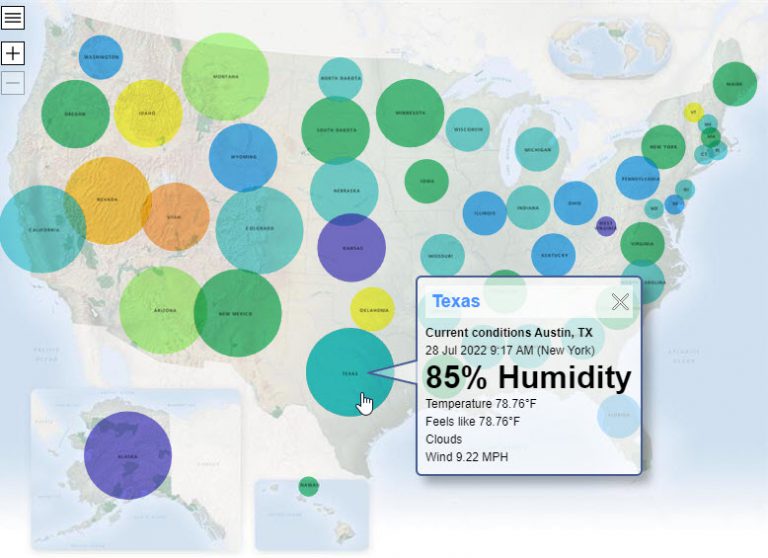
A clickable map lets visitors link to other maps or web pages. For example, a top level locator map like a country map could show all the states where your business has offices and let visitors click to go to individual state maps showing where each office is located. Try this larger version of the coffee shop interactive locator map to see how this works.

Embedding your map into your web page

You can add an interactive map to any web page. It's as easy as copying and pasting some simple HTML embed code where you want to display the map. If you don't have a lot of room or your business locations are spread out on your map you can make your map zoomable. This lets you display a larger map in a smaller area.

Why Not Just Use a Google Map?

A Google Map may not be the best way to provide a locator map. First, they contain too much detail that detracts from your business and second, they make your site look commonplace. Instead, choose a map that can easily highlight the locations you want to show – you could use a world map, a United States map, a regional or city map or even the inside of a building like a shopping mall. Use an attractive map image that enhances your web site and interesting hotspot graphics that make your locations really stand out. If you need to provide driving directions, you can add a link to a Google Map in the text that displays when someone clicks a location.

Interactive locator maps are a valuable addition to any web site, conveying useful information and enhancing the visitors experience on your site.

Are You Smart Enough to Be a Twitter Dummy?

by George Soules 7. February 2011 09:00

I've never been a fan of the yellow Dummies books. I buy three inch thick tomes that have the word "Advanced" or "Professional" in the title and weigh in at 8 pounds. A book that says it's for dummies could not possibly be for me.

One of the Best Social Media Books

So why am I writing a review in the interactive maps blog about "Twitter Marketing for Dummies" by Kyle Lacy? Because it's one of the best social media books I've come across and I wanted to share it with people who are thinking of using Twitter as a marketing tool for their business. I picked it up in Barnes & Noble only after failing to find another that had what I wanted (and only after looking over my shoulder to make sure no one saw me with a Dummies book).

Under the Hood

Here's the table of contents. All that in less than 300 pages.

1. Twitter and Your Business

2. Getting Started with Twitter

3. Combining New and Old Media Marketing

4. Plannng Your Twitter Marketing Strategy

5. Being Productive with Your Twitter Marketing Plan

6. Measuring the Success of your Marketing Plan

7. Building Your Personal Twitter Tribe

8. Leveraging Your Twitter Tribe

9. Reaching Your Customers

10. Creating Quality Content on Twitter

11. Promoting to Attract Sales Leads

12. Improving Your Customer Service

13. Relating to the Public

14. Building Thought Leadership on Twitter

15. Top Ten Do's on Twitter

16. Top Ten Don'ts on Twitter

17. Top Ten Thought Leaders on Twitter

18. Top Ten Tools to Use for Twitter Productivity

Appendix: Great Twitter Marketing Ideas in 140 Characters or Less

Practical Advice

Author Kyle Lacy (@kyleplacy) writes like a good friend who wants you to learn what's important about Twitter and how to use it without wasting time. For example, he advises not to agonize over what to tweet because

"...Twitter is a throwaway method of communication. Anything you say stays in the general timeline and on people's minds for all of ten seconds. Unless you tweet something grossly offensive or rip-roaringly funny, people aren't going to remember what you said five minutes after you tweet it, let alone what you said last week."

The book is full of this kind of practical wisdom plus a ton of solid information on marketing in general. Not being a marketing person myself, I was grateful to have someone tell me in plain English what I need to do and how to do it.

A Man With a Plan

As you can see from the table of contents, Lacy not only tells you about Twitter, he gives you a roadmap that you can follow to integrate Twitter into your own marketing plan (or to make a plan if you don't already have one). He tells you how to get the data you need (like using Twitter to find your competition) and how to measure your results. Along the way he describes dozens of useful tools that are available to assist you. There's so much information in this book that I had to keep placing sticky notes to mark the places I wanted to read again later. I also found it helpful to have my iPad at my side to look at the many URLs that the book provides.

Who You Calling Dummy?

I only had to read a few chapters of "Twitter Marketing for Dummies" to realize that I was the dummy that this book was written for. That dummy is someone who is an expert in their own field, but is new to social media and Twitter in particular. That dummy is someone who has a desire to keep up with important trends and knows that a willingness to change and adapt is necesary for survival in business. That dummy is someone who can admit they need help in areas where they have no experience. That dummy is one smart guy or gal who'll be glad they read this book.

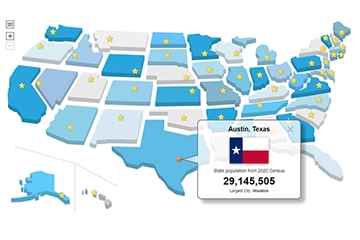
Interactive USA Population Map

by George Soules 31. January 2011 09:00

The map below is interactive. It uses U.S. Census data to show the distribution of population as of 2008.

Instructions:

  • Move your mouse over a state to see its population.
  • Check the boxes in the lower right to color states in that population range.
  • Move your mouse over the directory to see states categorized by population.

I used MapsAlive to make the map interactive and wrote a tutorial (PDF) explaing how I did it. Enjoy!

4 reasons home sellers and landlords should use interactive floor plans

by George Soules 26. January 2011 09:32

I own rental properties and find that interactive floor plans cut down on both phone calls and showings. The people who do call have a good feel for the property because they've already walked through it online. And the chances of them renting (or buying) when you take your valuable time to show the home in person are a lot higher than for people who are seeing the property for the first time.

Interactive floor plans actively engage viewers, allowing them to see how rooms relate to one another and what the view is from the street or out the window. Whether you are a realtor, for-sale-by-owner seller, or landlord, here are four reasons to consider using interactive floor plans in your online real estate listings or as links in classified ads.

Interactive floor plans:

1. Give potential buyers or renters a real sense of place
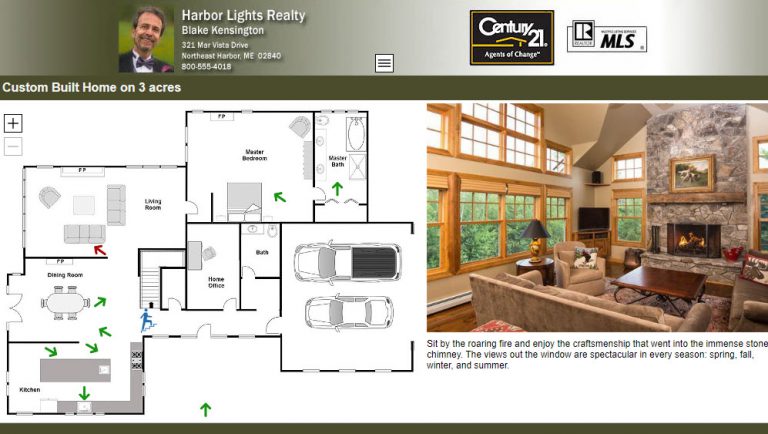
Interactive floor plans are the next best thing to being there. Combine floor plans with photos and text to give viewers a sense of place and perspective. Buyers can explore interiors, landscapes, and neighborhoods as they mouse around.

2. Make your listing stand out from the rest
Interactive floor plans are in a class by themselves. They set your listings apart from other listings that only show photos and slide shows.

3. Better than 360º virtual tours
Buyers can view a property in a more natural way using an interactive floor plan than with conventional 360º virtual tours. There's no waiting for tours to load and you don't get that queasy feeling that can come from spinning around in a virtual room!

4. Control what buyers see
An interactive floor plan lets you highlight favorable property features and downplay others. Show off special amenities, built-in cabinets, appliances and other details in addition to rooms, landscapes and neighborhood features. You can also include links to related web sites such as schools, parks, and other amenities. You can even add an area map showing the location of the property and its proximity to major employers, hospitals, and shopping areas.

The next time you have a property to sell or rent, try using an interactive floor plan as a real estate marketing tool. If your experience is anything like mine, you'll be glad you did.

To see how easy it is to create an interactive floor plan, watch this video.

Exploring the Twitterverse

by George Soules 22. January 2011 15:22

Learning about Twitter was making my head spin so I was happy to see this post: Explore the Twitterverse Console. It's an interective map (shown below) from oneforty.com that presents over 160 apps and services related to Twitter. This Twitterverse makes it easier to understand what's what.

The map has concentric rings representing categories, like Mobile Applications or Geolocation. The rings give structure to what seems like chaos making it easier to identify tools that you might want for your business. You click an app to go to a page that provides a description of the app along with reviews, links, and related tools. It's a great way to explore without getting lost in space (I had to throw that in because as a kid, I loved that show — "Danger, Will Robinson!").

Making a good thing even better
Now being an interactive map guy, I had an urge to see if I could make the Twitterverse even easier to navigate. I might have been able to resist, but the original post said "Steal this map!" and provided a zip file containing the HTML <area> tags that made it interactive. So I downloaded the zip, edited the tags to add the app names, and imported everything into MapsAlive.

Using MapsAlive I turned on the directory feature, and voila, I had the same map and hotspots, but with a searchable directory showing all the apps. As a last step I created categories for each ring and assigned them to the hotspots. Note that I made my version of the map narrower than the original so that it would fit in this blog post, but I made it zoomable so that you can still see the full size image.

The result is shown below. It's a working interactive map so go ahead and try it. Click in the directory to locate an app on the map, or click a hotspot to go to the oneforty page describing that app. You can also type in the Find box to narrow down the list.

Steal this map!
I hope you'll find this useful. If so, please let us know. Oh, and if you'd like to display this map on your web site, you can use the code below:

<iframe src="http://samples.mapsalive.com/21775" width="640" height="638" frameBorder="0" scrolling="no"></iframe>

Connect with us on Facebook Follow MapsAlive on Twitter MapsAlive on LinkedIn