New Feature - Import Marker Style

by George Soules 30. March 2012 16:51

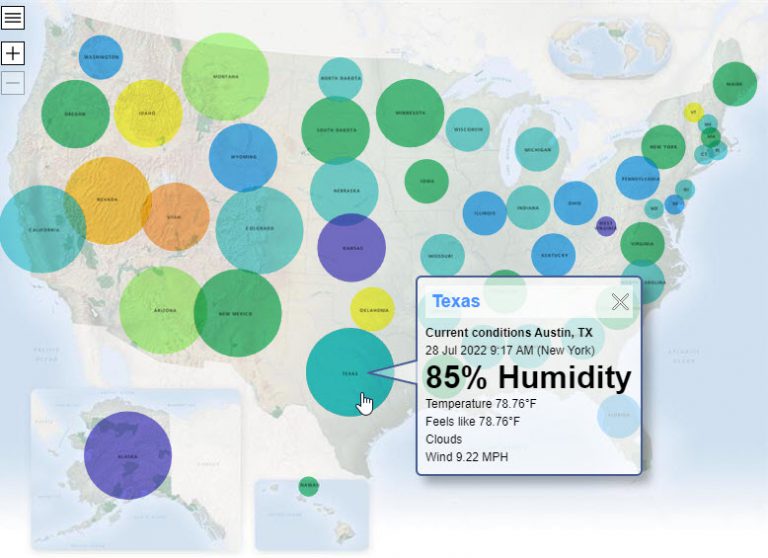
MapsAlive has a new feature that makes the import mechanism even more powerful. When importing from Excel (or CSV or XML) you can now specify a MarkerStyle column to change the appearance of bound markers. Before this feature was added you had to manually edit the marker styles on the Edit Marker screen in the Tour Builder by selecting a new choice from the Marker Style dropdown. This will be a big time saver for people who have maps that depend on marker styles to visually indicate the status of a hotspot. For example, a map of houses for sale might show available properties in one color and sold homes in another.

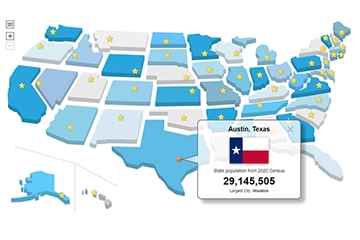
Note that I said that this feature works with bound markers. A bound marker is what you get when you import marker shapes such as when using a Ready Map. It's bound in the sense that it can only be associated with one hotspot. For example, on a USA map, the marker for Vermont is bound to the Vermont hotspot and cannot be used with any other hotspot. An example of a marker that is not bound is an arrow or a circle. An unbound marker can be used with any number of hotspots.

The reason that you can only import the marker style for a bound marker is because of the very nature of import. Each row in the import spreadsheet applies to a specific hotspot. If MapsAlive allowed you to change the marker style for an unbound marker, then the import for one row could have a side effect on many other hotspots in the tours in your account.

To use the new feature, add a MarkerStyle column to your import spreadsheet and enter marker style names in the cells. Note that the names you type are not case-sensitive, but punctuation must be exactly as it appears in the Tour Builder. An extra space, for example, will prevent MapsAlive from matching a name in the spreadsheet with a marker style name in your account. So just be careful, or copy-paste the names, and you won't have any problems.

To learn about the import feature in general, see the MapsAlive User Guide for Content Management.

MapsAlive and the New 3rd Generation iPad

by George Soules 22. March 2012 15:34

Last Friday we received one of the first new 3rd generation iPads and put it through it's paces. Sweet! Not only does it have cool new features and the awesome Retina display, it's much faster with interactive maps created using MapsAlive. Specifically, panning and zooming maps that have MapZoom turned on is now as quick and responsive as when using a native iOS app. On the older iPads, especially before iOS 5, panning and zooming was sometimes slow and choppy on larger maps. If you were previously using the MapsAlive option to disable smooth panning, you might want to try turning it off and see how your map behaves with iOS 5 (to turn it off, go to the Tour Manager page and in the Mobile Internet Options section, uncheck the Disable Smooth Panning box).

We were hoping to also see a significant improvement in performance for maps that use shape markers with marker styles that use the blend effect. It's a little faster now, but on large maps that have a lot of large shapes (think USA or world) it's still slow. To be fair to Apple, blending is a very compute-intensive operation that involves analysis and modification of every single pixel within a shape. The larger the shape, the more pixels. Perhaps the next OS will show an improvement, perhaps by tapping into the graphics processing hardware.

Back on the bright side, we made a major discovery for people who have the original iPad or iPad 2. If you are still running iOS 4, you definitely want to upgrade to iOS 5 because Apple made the Safari browser much faster. That improvement breathes new life into these older models and makes panning and zooming much nicer. This performance improvement is also evident on iPhone, even my old 3GS. As an aside, Safari on iOS 5 has tabs so that you can easily switch back and forth between different web sites, so that's another bonus.

Here at MapsAlive we are now considering what enhancements we might make to better take advantage of the new iPad. If you have suggestions, we would love to hear them!

Making the MapsAlive directory visible on Android browsers

by Janice Kenyon 19. December 2011 15:35

Not all mobile browsers are created equally. On some Android browsers the MapsAlive directory does not scroll which means the entries toward the end of a long directory are not visible because you can't scroll them into view. You can get around this by making the entire directory visible so that no scrolling is needed. You do this with a little bit of JavaScript code that we provide here.

If you have a Pro Plan you can add the code to the JavaScript section on the Tour > Custom HTML screen. If you have a Personal or Plus Plan you can use the same code, but you will have to include it in the web page that contains your interactive map.

First, you need to detect whether your interactive map is running on an Android browser. Then you can change the behavior of the directory so that all of the entries are visible.

Here is the code:

function maOnMapLoaded()
{
   if (maUaIs("android") || maUaIs("skyfire"))
   {
      var dir = document.getElementById("maDirContent");
      dir.style.maxHeight = "none";
   }
}

The maOnMapLoaded() function is automatically called when your map is loaded in the browser and is ready to communicate with. The maUaIs() function lets you check for a specific browser by examining the user agent string. A user agent string identifies the browser name, version number, and other system details. So, in this case it checks to see if the user agent is "android" or "skyfire". (Skyfire is an Android browser, but for some reason does not identify itself as an Android browser so we check for it separately).

If the map is running on an Android browser, the code overrides the maximum height of the directory so it can fully expand and display all of its entries.

IMPORTANT: If your tour is directly embedded in a web page and you are using Custom HTML to add the code, be sure that your embed code includes custom.js. You can get the <script> tag to include it from the Code Snippets section on the Tour Preview page. If you don't include custom.js, your custom HTML won't be part of your tour and this solution won't work.

To learn more about the maOnMapLoaded() function or other MapsAlive JavaScript functions see the user guide for the JavaScript API.

How to Style Hyperlinks in Hotspot Content

by George Soules 1. November 2011 07:23

Here's a tip for Pro Plan users on how to change the appearance of hyperlinks in hotspot content.

You can change the look of each link individually by editing its HTML on the Edit Hotspot Content page, but if you want them all to look the same without editing each one, do this. Choose Tour > Custom HTML from the Tour Builder menu, and then copy/paste the CSS shown below into the CSS section.

#maTextArea a {
   font-family:Verdana, Arial, Helvetica, Sans-Serif;
   font-size:18px;
   font-weight:bold;
}


#maTextArea a:link {
   color:pink;
   text-decoration:none;
}


#maTextArea a:visited {
   color:yellow;
   text-decoration:none;
}


#maTextArea a:hover {
    color:green;
   text-decoration:underline;
}

You'll probably want to edit my CSS to suit your taste. I chose options that make it easy to see what's going on. Hyperlinks appear in pink if they have never been visited and yellow if they have been. They appear in green when you move the mouse over them. They are normally not underlined except when you mouse over them (that's what the text-decoration attribute controls). Note that I also made the font large (24px) and bold.

IMPORTANT: If your tour is directly embedded in a web page and you are using Custom HTML to add the code, be sure that your embed code includes custom.js. You can get the <script> tag to include it from the Code Snippets section on the Tour Preview page. If you don't include custom.js, your custom HTML won't be part of your tour and this tip won't work.

To learn about the #maTextArea class and other ways to use CSS in your tours, see section 6.4 of the MapsAlive user guide for the JavaScript API.

Tags: ,

MapsAlive

Using a MapsAlive Gallery to Show 360 Degree Panoramas

by George Soules 24. August 2011 09:09

The MapsAlive gallery feature is a great way to display still photographs, but did you know that you can also use it for video and other multimedia? On my own personal photography site, I use a gallery to display 360° panoramic images (see screenshot below). When you click on a thumbnail in the gallery, its panorama displays so that you can pan and zoom it. You can see how it works here.

A MapsAlive gallery used to display 360 degree panoramas

Show a Panorama When a Marker is Clicked

When you use still photos in a gallery, the photo changes as soon as you mouse over its marker. That will happen with the panoramas too, but it's probably not the behavior you want since they can take a few seconds to load. So we changed the markers to show their content (the panorama) when clicked instead of when moused over. You do that by going to the Hotspot Actions screen and choosing the Marker is clicked radio button for the Show this hotspot's content when option.

Unfortunately, that causes a small problem. Even though the content does not change when you mouse over a marker, the marker under the mouse appears as selected (in the example above the selected marker has a red border). That means that the panorama being displayed can get out of sync with the marker that is showing as selected. We can fix that with a few lines of JavaScript and by changing the markers to be static.

Static Markers

A static marker does not change its appearance when you move your mouse over it. It does, however, still show its tooltip and it still performs its mouse actions, in this case, the click action. You make a marker static when you want more control over when its appearance changes. For this gallery, we only want a marker to appear as selected after it has been clicked. To make a marker static, just check the Is Static box on the Advanced Hotspot Options screen.

A Little Bit of JavaScript

After we made all the markers static, we went to the Custom HTML screen and typed the function shown below into the JavaScript text box. You can read about the maOnHotspotChanged function in the user guide for the JavaScript API, but briefly, it gets called whenever a new hotspot is selected. So it gets called when you click on a marker, but not when you simply mouse over it.

The code we added to the function only does two things. First, it sets the appearance of all the markers to normal. We do this in order to remove the selected appearance from whichever marker is currently selected. Second, it makes the marker that was just clicked appear as selected. Here's the code:

function maOnHotspotChanged(hotspotId)
{
   mapsalive.setMarkerAppearanceNormal("*");
   mapsalive.setMarkerAppearanceSelected(hotspotId);
}

In the first statement, the "*" is wildcard notation meaning all markers. You can use it instead of typing a list of every marker's hotspot Id. Note that you need to have a MapsAlive Pro Plan to use the Custom HTML feature, but if you only have a Plus or Personal plan, you can put the JavaScript in the web page that contains the tour itself.

Also Works with Maps

The example discussed here uses a gallery, but everything would work the same way with a map. For example, suppose you wanted to display panoramas showing vistas at various points along a hiking trail. You would use a hiking trail map and your favorite marker symbol (maybe an arrow or some little feet) and have each marker display its panorama when clicked. Or you could have some of the markers display panoramas and some display still photos or videos.

Works on iPad and iPhone

We use a panorama player that works on PCs, Macs, iPad, and iPhone. Since MapsAlive galleries and maps also work on all those devices, you can be sure that everyone will be able to enjoy your tour.

Create an Interactive Restaurant Menu with MapsAlive

by George Soules 26. May 2011 12:08

Make Your Restaurant Stand Out from the Crowd

If you have a restaurant (or you are a web developer who does web sites for restaurants) consider making your menu interactive. Every day, hungry people use the web to decide where to have lunch or to plan a special dinner. An interactive menu gives your establishment an edge over the competition because visitors to your web site not only see your menu, they see mouth watering photos of your food. When people can see what you have to offer, there's a good chance that they'll walk through your door.

How Interactive Restaurant Menus Work

An interactive menu can be the same as your printed menu or your existing web site menu. The big difference is that when someone moves their mouse over (or touches) an entrée, a photograph of that entrée appears.

To get the idea, see the screen shot below.


Do It Yourself or Have Us Make Your Menu Interactive For You

Creating an interactive menu is easy with MapsAlive. Here are the basic steps.

  • Create a new tour with MapsAlive.
  • Upload an image of your menu.
  • Pick the kind of marker you want to use for the hotspot – a transparent rectangle works well.
  • Upload a zip file of your food images. MapsAlive automatically creates a hotspot for each entrée.
  • Place your markers on the appropriate menu locations.
  • Preview and publish your tour and put it on your web site!

If you are too busy serving delicious food to your customers, send your menu and photos to us and we can do it for you.

Works on iPad and iPhone too

Your new interactive menu will work on PC and Mac browsers, but it will also work on iPad, iPhone, and Android devices. That means that people on the road will be able to see what you have to offer and be enticed to visit you in person.

To try working examples of interactive restaurant menus and to see a step-by-step tutorial on how to create one, visit http://www.mapsalive.com/LearningCenter/RestaurantMenus.aspx.

Bon Appetit!

Launch an Interactive Map from an App Icon on your iPad or iPhone

by George Soules 9. May 2011 09:00

In this article I'm going to tell you how you can launch a web page with one touch of an app icon on your iPad or iPhone. This not only saves you the steps of launching Safari and typing a URL (see left image below), but your page will come up in full-screen mode (see right image below). It works with interactive maps, interactive floor plans, or interactive photo Galleries (as shown here) that you create with MapsAlive.

Left: Web page shown in Safari.   Right: The same page launched as a web app.

Apple describes this feature as making a web page “web app capable.” Notice how much extra room is available to the map when launched as a web app thanks to the absence of the address bar at the top and the icon bar at the bottom.

Two easy steps

Making a map web app capable only takes a minute. The first step is to allow the interactive map to be launched with one touch and the second is to create an app icon for your home screen. Both steps are described below.


Step 1 – Make the map web app capable

  1. Go to the Tour Manager screen in the MapsAlive Tour Builder.
  2. Check the box that says Make Tour Web App Capable.
  3. Preview and publish your map.

Step 2 – Create an app icon for the map’s URL.

  1. Launch Safari and enter the URL for the map.
  2. Wait for the map to load.
  3. Tap the icon that looks like an arrow coming out of a box. On iPad it’s at the top of the screen (see top image at right). On iPhone it’s at the bottom.
  4. Choose Add to Home Screen.
  5. An Add to Home dialog appears (see bottom image at right). Type a short name for the app icon.
  6. Click the Add button.
  7. An icon that looks like the map then appears on your home screen.
  8. On your home screen, touch the new icon and the map will launch with no address bar.

If you want to get rid of an app icon that you have created this way, just press on the icon until it starts to vibrate and an X appears next to it. Touch the X to remove the icon from your home screen.

I hope you have fun with this — enjoy!

Interactive Maps and Floor Plans on iPad without Wi-Fi or 3G

by George Soules 27. April 2011 14:20
GoodReader for iPad
GoodReader for iPad

Here's a great tip that came from one of our customers who needed to use his interactive map without internet access. This is great when you are on the road in low techsville.

Here's how it works. You copy all the files for your interactive map onto your iPad into an app called GoodReader. You can then use GoodReader's built-in browser to view them. Since the files are already on your iPad, there's no need to get them from the internet. Follow the steps below and your map will be installed and running on your iPad internet-free in a few minutes.

  1. First make sure your tour has been enabled to run on your iPad. You do this by checking the Enable Mobile Internet Options box on the Tour Manager screen in MapsAlive.

  2. Now get the files for your interactive map. In the MapsAlive Tour Builder, choose Tour > Export and then click Download Published Tour. This gives you a zip file containing everything you need.

  3. If you don't have it already, buy and install GoodReader for iPad ($4.99 from the iTunes Store).

  4. With your iPad connected to your Mac or PC, open iTunes, select your iPad from the Devices section, and then click Apps in the top menu bar. Then click on GoodReader in the File Sharing section near the bottom of the screen.

  5. Drag your zip file onto the GoodReader Documents section or click the Add button to browse for it. This copies the zip to your iPad. I tried this on a PC and am assuming it works the same on a Mac. If not, someone please let me know.

  6. Now launch GoodReader on your iPad. The zip file will appear in the My Documents section on the left. When you touch the file name, GoodReader will prompt you to unzip it. Note that if there is a circle to the left of the file name, then touching the file name only selects it. In that case, touch the Unzip button in the Manage Files pane on the right and then click the blue Done button.

  7. GoodReader will create a folder having the same name as the zip file. Touch the folder name to see the files in the folder. If there is a circle to the left of the folder name, touching the name will only select it so first click the Done button in the Manage Files pane, then touch the folder name to open it. At this point you can delete the zip file if you like.

  8. Inside the folder locate the file named index.htm. It's the HTML page that launches your interactive map.

  9. Touch index.htm and your interactive map will display in the GoodReader browser. To make it easier to find this file the next time, you could rename it to __index.htm so that it will sort at the top (that's two underscores in front of the file name).

  10. To prove that your interactive map will work without Wi-Fi or 3G, put your iPad into Airplane Mode. GoodReader will display a dialog telling you to turn it off, but just press OK.

I was really happy to learn of this solution and hope you will find it useful. If you have a good tip like this that you think other MapsAlive users would like to see, please send it to us.

Enjoy!

Why Interactive Floor Plans are Better than Video or Virtual Tours for Selling Real Estate

by George Soules 18. February 2011 12:10

Two popular ways to showcase real estate are videos and virtual tours. But did you know that interactive floor plans are more effective and a better value for your money?

While video and virtual tours can show a realistic view of the interior of a home, they can’t tell the whole story and you may risk viewers leaving the web page before the video or virtual tour even loads.

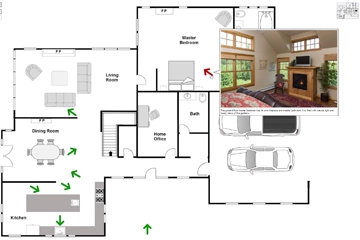
Move your mouse over the arrows

Interactive floor plans show the whole property at once
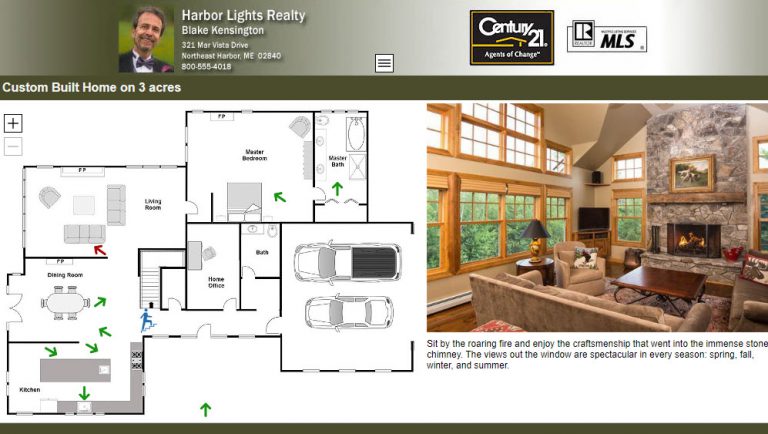
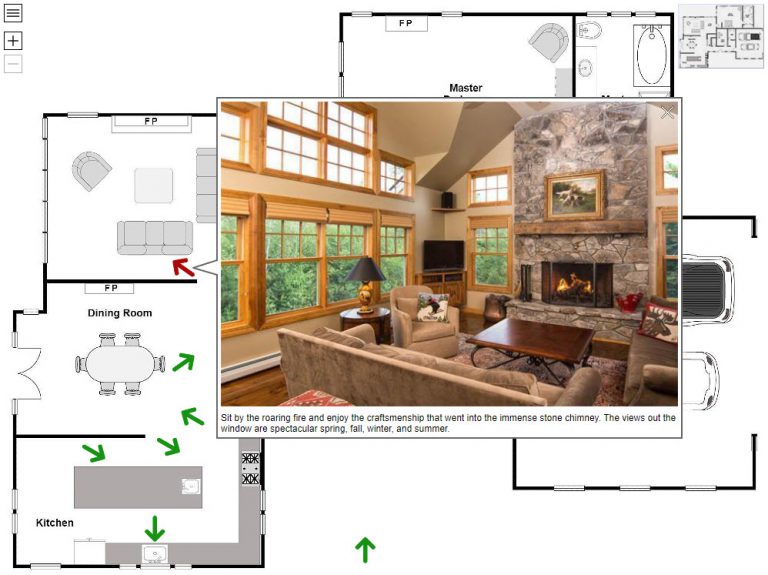
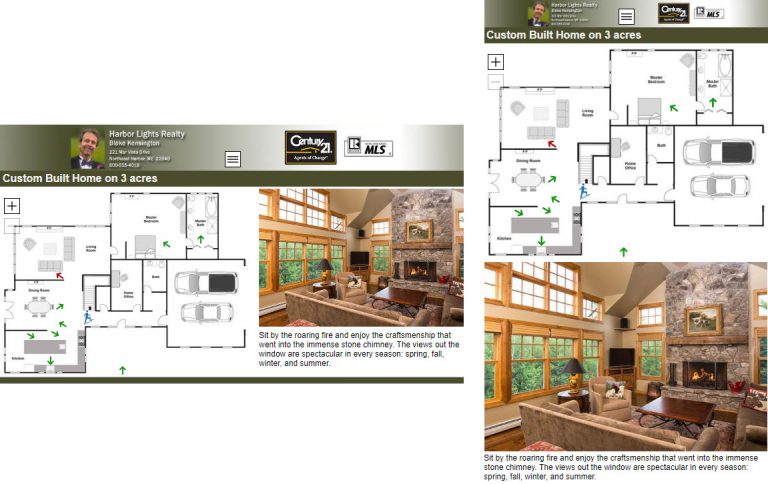
Interactive floor plans allow viewers to quickly see the entire property – how the rooms are laid out, how big they are, and where windows and doors are located – and also zoom in on what’s important to them. For one buyer it might be the kitchen, for another it’s the bathrooms, or a workshop. Move your mouse over the kitchen to see a photo and read that the counter tops are granite and the cabinets are Cherry. You can’t do that with video or virtual tours.

Keep people interested in your listings − time is of the essence
Most people spend just a few seconds deciding whether to stay on a listing page or move on. With an interactive floor plan there’s no waiting for a video or virtual tour to load and you don’t have to sit through a sequential presentation to see what interests you. Interactive floor plans let you explore rooms you are most interested in and easily get back to things you want to see again.

Interactive floor plans are cost effective and easy to create
There’s no need for a lot of special equipment to produce professional results. Using online interactive floor plan software like MapsAlive, you can create a very high quality interactive floor plan for under $30. Just upload your floor plans and photos, drag hotspots to show where photos were taken, and type some descriptive text to highlight special features of the home.

MapsAlive and Google Maps - Is it David and Goliath?

by George Soules 21. January 2011 11:16

No, it's more like Tangerines and Grape Fruit. They're both citrus fruits, but they have different flavors and one is a lot bigger than the other! Two of the questions we get asked the most are how can you compete with Google Maps and why should I use MapsAlive instead of Google Maps?

First of all, we love Google Maps and you can even incorporate them into the interactive maps you create with MapsAlive. So we don't compete, but rather co-exist and encourage people to choose whichever tool is best for the task at hand. Here are some ways to differentiate between the two to decide which is right for you.

Do you need a geographic map (a place on earth) or is your map something else like a floor plan?
MapsAlive will let you use any image as a map. If your map is not geographic, Google Maps might not be an option for you.

Do you need a stylized geographic map, or a map with less detail, or a map that is not to scale?

Google Maps are attractive, detailed, and have no boundaries. This style of map works very well for many applications, but if you need a map with less detail, or with a stylized appearance, or where only the area of interest shows (e.g. California by itself without Oregon, Nevada, and Mexico) you can get that with MapsAlive.

Do you need GIS capabilities?
Markers on a Google Map are placed by their GIS coordinates (latitude and longitude). MapsAlive does not support GIS coordinates – you place markers anywhere you like by dragging them with your mouse. If you must have GIS, Google Maps is a way to go.

Do you know how to program in JavaScript in order to customize your map?
Google Maps has powerful customization features, but to take advantage of many of them you need to be able to do HTML and JavaScript programming. MapsAlive's customization features require no programming, but if you are a programmer, MapsAlive will let you use JavaScript to make your maps even more powerful.

Do you need to be able to use your map without an internet connection ?

Google Maps require an internet connection, but you can use a MapsAlive map offline where no internet connection is available. You can download your maps to a laptop and show them to anyone, anywhere.

How interactive do you want your map to be?

Google Maps are great, but they don't do much when you move your mouse around (unless you do custom programming). Look at the samples on the MapsAlive web site to see how interactive a MapsAlive map can be.

The bottom line

Both MapsAlive and Google Maps are powerful tools with a lot of features. While they have some overlapping functionality, Google Maps really shine for geographic maps that have a conventional road map look or require locations that use GIS coordinates. For most other kinds of maps, diagrams, floor plans – you name it – nothing beats MapsAlive.

Connect with us on Facebook Follow MapsAlive on Twitter MapsAlive on LinkedIn