MapsAlive and the New 3rd Generation iPad

by George Soules 22. March 2012 15:34

Last Friday we received one of the first new 3rd generation iPads and put it through it's paces. Sweet! Not only does it have cool new features and the awesome Retina display, it's much faster with interactive maps created using MapsAlive. Specifically, panning and zooming maps that have MapZoom turned on is now as quick and responsive as when using a native iOS app. On the older iPads, especially before iOS 5, panning and zooming was sometimes slow and choppy on larger maps. If you were previously using the MapsAlive option to disable smooth panning, you might want to try turning it off and see how your map behaves with iOS 5 (to turn it off, go to the Tour Manager page and in the Mobile Internet Options section, uncheck the Disable Smooth Panning box).

We were hoping to also see a significant improvement in performance for maps that use shape markers with marker styles that use the blend effect. It's a little faster now, but on large maps that have a lot of large shapes (think USA or world) it's still slow. To be fair to Apple, blending is a very compute-intensive operation that involves analysis and modification of every single pixel within a shape. The larger the shape, the more pixels. Perhaps the next OS will show an improvement, perhaps by tapping into the graphics processing hardware.

Back on the bright side, we made a major discovery for people who have the original iPad or iPad 2. If you are still running iOS 4, you definitely want to upgrade to iOS 5 because Apple made the Safari browser much faster. That improvement breathes new life into these older models and makes panning and zooming much nicer. This performance improvement is also evident on iPhone, even my old 3GS. As an aside, Safari on iOS 5 has tabs so that you can easily switch back and forth between different web sites, so that's another bonus.

Here at MapsAlive we are now considering what enhancements we might make to better take advantage of the new iPad. If you have suggestions, we would love to hear them!

Making the MapsAlive directory visible on Android browsers

by Janice Kenyon 19. December 2011 15:35

Not all mobile browsers are created equally. On some Android browsers the MapsAlive directory does not scroll which means the entries toward the end of a long directory are not visible because you can't scroll them into view. You can get around this by making the entire directory visible so that no scrolling is needed. You do this with a little bit of JavaScript code that we provide here.

If you have a Pro Plan you can add the code to the JavaScript section on the Tour > Custom HTML screen. If you have a Personal or Plus Plan you can use the same code, but you will have to include it in the web page that contains your interactive map.

First, you need to detect whether your interactive map is running on an Android browser. Then you can change the behavior of the directory so that all of the entries are visible.

Here is the code:

function maOnMapLoaded()
{
   if (maUaIs("android") || maUaIs("skyfire"))
   {
      var dir = document.getElementById("maDirContent");
      dir.style.maxHeight = "none";
   }
}

The maOnMapLoaded() function is automatically called when your map is loaded in the browser and is ready to communicate with. The maUaIs() function lets you check for a specific browser by examining the user agent string. A user agent string identifies the browser name, version number, and other system details. So, in this case it checks to see if the user agent is "android" or "skyfire". (Skyfire is an Android browser, but for some reason does not identify itself as an Android browser so we check for it separately).

If the map is running on an Android browser, the code overrides the maximum height of the directory so it can fully expand and display all of its entries.

IMPORTANT: If your tour is directly embedded in a web page and you are using Custom HTML to add the code, be sure that your embed code includes custom.js. You can get the <script> tag to include it from the Code Snippets section on the Tour Preview page. If you don't include custom.js, your custom HTML won't be part of your tour and this solution won't work.

To learn more about the maOnMapLoaded() function or other MapsAlive JavaScript functions see the user guide for the JavaScript API.

Launch an Interactive Map from an App Icon on your iPad or iPhone

by George Soules 9. May 2011 09:00

In this article I'm going to tell you how you can launch a web page with one touch of an app icon on your iPad or iPhone. This not only saves you the steps of launching Safari and typing a URL (see left image below), but your page will come up in full-screen mode (see right image below). It works with interactive maps, interactive floor plans, or interactive photo Galleries (as shown here) that you create with MapsAlive.

Left: Web page shown in Safari.   Right: The same page launched as a web app.

Apple describes this feature as making a web page “web app capable.” Notice how much extra room is available to the map when launched as a web app thanks to the absence of the address bar at the top and the icon bar at the bottom.

Two easy steps

Making a map web app capable only takes a minute. The first step is to allow the interactive map to be launched with one touch and the second is to create an app icon for your home screen. Both steps are described below.


Step 1 – Make the map web app capable

  1. Go to the Tour Manager screen in the MapsAlive Tour Builder.
  2. Check the box that says Make Tour Web App Capable.
  3. Preview and publish your map.

Step 2 – Create an app icon for the map’s URL.

  1. Launch Safari and enter the URL for the map.
  2. Wait for the map to load.
  3. Tap the icon that looks like an arrow coming out of a box. On iPad it’s at the top of the screen (see top image at right). On iPhone it’s at the bottom.
  4. Choose Add to Home Screen.
  5. An Add to Home dialog appears (see bottom image at right). Type a short name for the app icon.
  6. Click the Add button.
  7. An icon that looks like the map then appears on your home screen.
  8. On your home screen, touch the new icon and the map will launch with no address bar.

If you want to get rid of an app icon that you have created this way, just press on the icon until it starts to vibrate and an X appears next to it. Touch the X to remove the icon from your home screen.

I hope you have fun with this — enjoy!

Interactive Maps and Floor Plans on iPad without Wi-Fi or 3G

by George Soules 27. April 2011 14:20
GoodReader for iPad
GoodReader for iPad

Here's a great tip that came from one of our customers who needed to use his interactive map without internet access. This is great when you are on the road in low techsville.

Here's how it works. You copy all the files for your interactive map onto your iPad into an app called GoodReader. You can then use GoodReader's built-in browser to view them. Since the files are already on your iPad, there's no need to get them from the internet. Follow the steps below and your map will be installed and running on your iPad internet-free in a few minutes.

  1. First make sure your tour has been enabled to run on your iPad. You do this by checking the Enable Mobile Internet Options box on the Tour Manager screen in MapsAlive.

  2. Now get the files for your interactive map. In the MapsAlive Tour Builder, choose Tour > Export and then click Download Published Tour. This gives you a zip file containing everything you need.

  3. If you don't have it already, buy and install GoodReader for iPad ($4.99 from the iTunes Store).

  4. With your iPad connected to your Mac or PC, open iTunes, select your iPad from the Devices section, and then click Apps in the top menu bar. Then click on GoodReader in the File Sharing section near the bottom of the screen.

  5. Drag your zip file onto the GoodReader Documents section or click the Add button to browse for it. This copies the zip to your iPad. I tried this on a PC and am assuming it works the same on a Mac. If not, someone please let me know.

  6. Now launch GoodReader on your iPad. The zip file will appear in the My Documents section on the left. When you touch the file name, GoodReader will prompt you to unzip it. Note that if there is a circle to the left of the file name, then touching the file name only selects it. In that case, touch the Unzip button in the Manage Files pane on the right and then click the blue Done button.

  7. GoodReader will create a folder having the same name as the zip file. Touch the folder name to see the files in the folder. If there is a circle to the left of the folder name, touching the name will only select it so first click the Done button in the Manage Files pane, then touch the folder name to open it. At this point you can delete the zip file if you like.

  8. Inside the folder locate the file named index.htm. It's the HTML page that launches your interactive map.

  9. Touch index.htm and your interactive map will display in the GoodReader browser. To make it easier to find this file the next time, you could rename it to __index.htm so that it will sort at the top (that's two underscores in front of the file name).

  10. To prove that your interactive map will work without Wi-Fi or 3G, put your iPad into Airplane Mode. GoodReader will display a dialog telling you to turn it off, but just press OK.

I was really happy to learn of this solution and hope you will find it useful. If you have a good tip like this that you think other MapsAlive users would like to see, please send it to us.

Enjoy!

MapsAlive for the Mobile Internet now supports iPad and iPhone

by George Soules 4. April 2011 08:58

The team here at MapsAlive is pleased to announce the first beta release of MapsAlive for the mobile internet. The interactive maps and floor plans you create with MapsAlive will now work on both desktop and mobile browsers. We currently support these mobile devices: iPad, iPhone, and iPod touch running OS 4.3 or higher, as well as other mobile devices such as Android devices.

How Interactive Maps Work on the Mobile Internet

When you publish a MapsAlive tour with mobile internet enabled, the map automatically detects whether it is running on a mobile browser or on a desktop browser. On mobile devices the map displays using HTML5 and on desktop browsers it uses Flash. It's the same map displayed the best way for the browser.

The 411 on HTML5 Versus Flash

HTML5 versus Flash Until recently most web pages that displayed interactive or animated graphics used a proprietary technology from Adobe called Flash. That is until Apple decided not to allow Flash on the iPad, a tablet that has been a phenomenal success. Enter HTML5, a non-proprietary web standard (well almost) that is supported by Safari, Firefox, Chrome, Opera, and IE9.

HTML5 works great on the iPad, but it doesn't work on IE 6, 7, or 8 which together had more than 46% of market share as of March 2011. What this all means is that if you want the millions of iPad and iPhone users to be able to view your interactive maps and you want your maps to work on legacy desktop browsers, you need a technology that supports both Flash and HTML5. You need MapsAlive for the Mobile Internet.

Become a Beta Tester

We invite you to become a beta tester and be the first on your block to have interactive maps working on your iPad or iPhone.

MapsAlive now supports iPad, iPhone, and Android

Support for mobile devices has been officially released. To learn more please visit http://www.mapsalive.com/Features/Mobile.aspx.

Interactive Maps with Live Data — Works on iPad, iPhone

by George Soules 31. March 2011 11:08

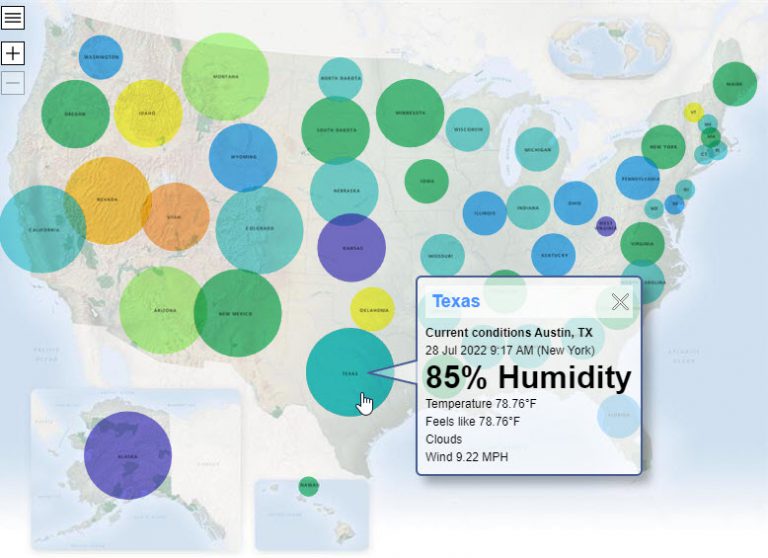
MapsAlive now supports the Live Data feature in HTML5 so that your iPad or iPhone can display up-to-the-minute, real time information from your server.

The sample below is an interactive diagram that lets you choose which kind of data to retrieve. Try it now by touching one of the five icons. Tip: Use two fingers to scroll the RSS data (CNN News) up and down.

Touch the icons

How Live Data works

When a visitor on your web site touches or moves their mouse over a hotspot on your interactive map, MapsAlive calls your server and displays the data it returns. The data can come from files, web services, your database, or an RSS feed. If your server can serve it, your map can display it. For those of you who talk geek speak, it does this by making AJAX style HTTP requests. Learn more...

Uses for Live Data

Using Live Data with an interactive map opens up a world of possibilities. You can use it with any kind of map, diagram, or floor plan to retrieve any kind of information that your server can deliver. If your data changes frequently, this is an easy way to make sure that people who visit your web site always see the latest information.

Works in both HTML5 and Flash

If you are viewing this blog post on a browser that supports HTML5, the interactive diagram above is displayed in HTML5, otherwise it is displayed using Flash. It's the same live map rendered two different ways automatically so that you don't have to do any extra work to make your web site mobile friendly.

I hope you have enjoyed this sample. If you are interested in being an HTML5 beta tester, please send email to support@mapsalive.com. Update: Support for iPad, iPhone and other mobile devices has been officially released. To learn more visit: http://www.mapsalive.com/Features/Mobile.aspx. To keep up with the latest news, subscribe to this blog.

Interactive Museum Floor Plan works on iPad, iPhone

by George Soules 23. March 2011 11:35

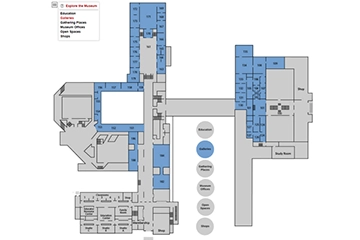
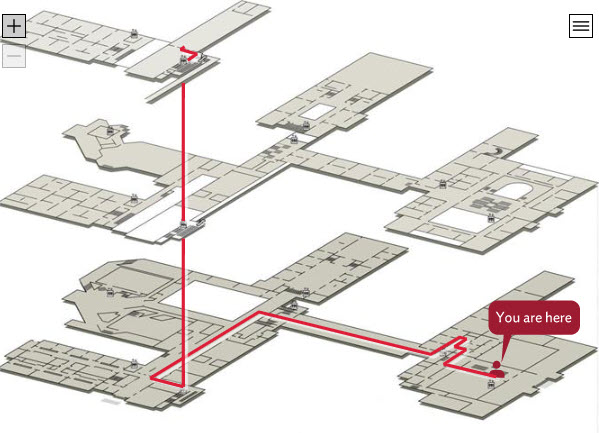
Today's post is an interactive floor plan of the Art Institute of Chicago. It draws routes from where you are to where you want to be. Try it below or view the interactive floor plan in a separate browser window.

Interactive Maps in HTML5 instead of Flash

This 3D interactive floorplan displays using HTML5 when you view it with a modern PC or Mac browser and when using an iPad or iPhone. It displays using Flash on older browsers. MapsAlive is the first do-it-yourself interactive floor plan software to let you make any image interactive and automatically display it in HTML5 or Flash depending on what the browser supports.

The Art Institute of Chicago

About The Art Institute of Chicaco

When the Art Institute of Chicago opened their new Modern Wing in May of 2009, the museum grew to more than a million square feet of gallery space, making it the second largest art museum in the United States. You can literally get lost in there so the challenge for the museum was to create an interactive floor plan that would help viewers discover and locate artworks and museum amenities. They wanted a solution that would work on museum touch-screen kiosks as well as their web site.

The solution, called Pathfinder, uses MapsAlive to create interactive floor plans that guide visitors through the museum's many buildings and floors and help them discover and locate artworks on display. Both museum visitors and web site users can discover artworks and exhibits, see gallery panoramas, find events and locate amenities such as restaurants and shops.

MapsAlive beta for mobile devices coming soon
A beta version of MapsAlive that will allow you to create your own HTML5 interactive images is now scheduled to become available on April 4, 2011. If you would like to be beta tester, please send email to support@mapsalive.com. To keep up with the latest news, subscribe to this blog.

Update: Support for iPad, iPhone and other mobile devices has been officially released. You can now create your own HTML5 interactive maps and images with MapsAlive. To learn more visit: http://www.mapsalive.com/Features/Mobile.aspx.

3D floor plan drawn by Slate Roof Studio and used with permission from The Art Institute of Chicago.

Interactive Travel Map of Mt. Desert Island works on iPad, iPhone

by George Soules 18. March 2011 13:00

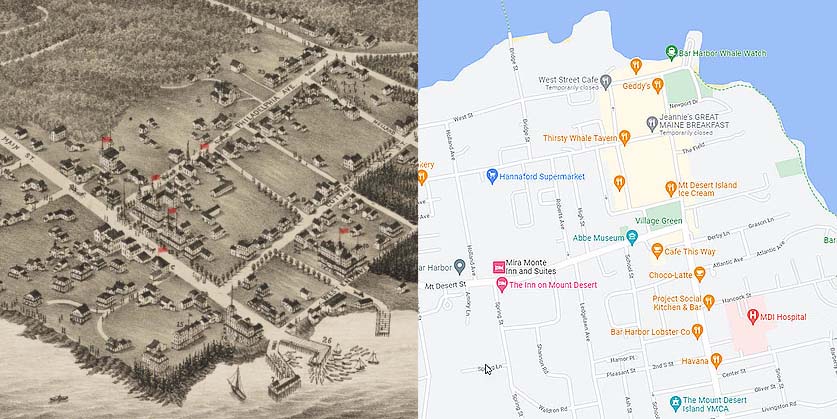
I'm excited to share our third HTML5 sample as we get closer to the first beta release of MapsAlive for mobile devices. Today's map is of my favorite place on earth, Mt. Desert Island in Maine.

Touch the blue pins

MapZoom has gone mobile

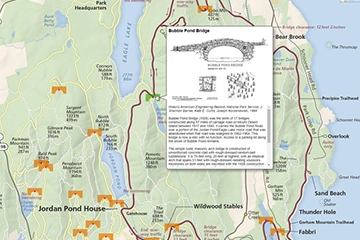
MapsAlive now supports the MapZoom feature in HTML5 and we designed it with Apple's recommended best practices in mind. The sample first appears zoomed in on Bar Harbor. To pan the map, touch and drag with one finger. To see the entire island, use the pinch gesture to zoom out. While zoomed out, touch one of the blue pins to see a photo taken at that spot, then pinch again to see the map zoomed in at that location. If you are not using a touch device, use the zoom/pan controls in the upper left or click/drag to pan.

Find what you're looking for

At the upper right of the map you'll find a simple directory that lets you select a point of interest and locate it on the map. If the map is zoomed in, it automatically positions to make sure the selected hotspot is visible.

Non zooming markers

The pin markers on this interactive map behave like the markers on a Google Map − they stay the same size whether the map is zoomed in or out. When you have a locator map that has lots of markers, you can make the markers scale down when the map zooms out so that they don't get bunched up. Choosing which marker zoom behavior you want is just a matter of checking a box using our easy to use map software.

Works in both HTML5 and Flash

If you are viewing this blog post on a mobile device, it is displayed using HTML5. If you are using a PC or Mac, it displays using Flash. It's the same map rendered two different ways automatically so that you, the map creator, don't have to do any extra work to make your maps mobile friendly.

I hope you have enjoyed this sample. If you are interested in being an HTML5 beta tester, please send email to support@mapsalive.com. To keep up with the latest news, subscribe to this blog.

Update: Support for iPad, iPhone and other mobile devices has been officially released. To learn more visit: http://www.mapsalive.com/Features/Mobile.aspx.

Interactive Map of USA in HTML5 for iPad, iPhone, iPod touch

by George Soules 7. March 2011 13:40

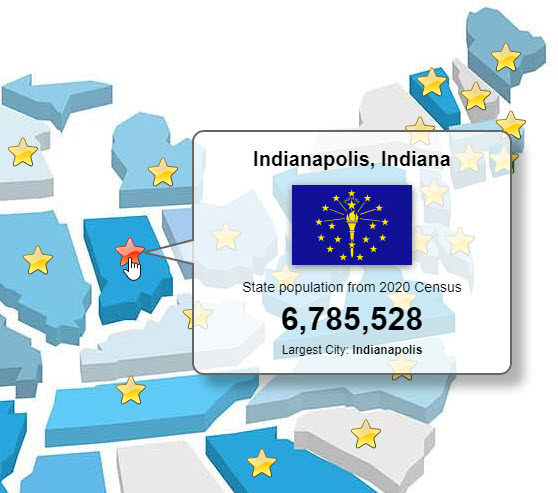
MapsAlive support for HTML5 has been officially released. is almost here and we'll be making a beta release soon. In the meantime we've made another sample for you. Try this 50 state map below or view the interactive US map by itself.

Interactive Maps and Floor Plans without Flash

The interactive map of the United States below displays without Flash when you view it using your iPad, iPhone or iPod Touch. With those devices the map uses HTML5. If you use a PC or Mac browser, it displays in Flash. MapsAlive is the first do-it-yourself interactive map software to automatically make any image interactive in HTML5 or Flash depending on the browser. And it works for interactive floor plans too.

Touch a state (or move your mouse over it)

Popups with Rounded Corners and a Drop Shadow

This US map sample also demonstrates a new feature coming soon in MapsAlive — popups with rounded corners and a drop shadow. This new look works in all the modern browsers (Safari, Firefox, IE9, Chrome, Opera). With IE7 and IE8 you'll see square corners and no shadow.

Update: Support for iPad, iPhone and other mobile devices has been officially released. To learn more visit: http://www.mapsalive.com/Features/Mobile.aspx.

Stay Tuned
As we make more progress and create new samples, we'll share them with you here on the Interactive Maps Blog. We are still looking for HTML5 beta testers, so let us know your interest by sending email to support@mapsalive.com. To keep up with the latest news, subscribe to this blog.

All the best from the MapsAlive team.

Interactive Floor Plan in HTML5 for iOS (iPad, iPhone, iPod touch)

by George Soules 23. February 2011 10:56

Many of you have been asking when your interactive maps and floor plans will work on iPad and iPhone. We've been working hard to make MapsAlive use HTML5 as an alternative to Flash on these devices and today we are sharing our first sample. Update: Support for iPad, iPhone and other mobile devices has been officially released. To learn more visit: http://www.mapsalive.com/Features/Mobile.aspx.

View this blog post on your iOS device and then touch the camera markers to see it work. If you view it with a PC or Mac browser, it will render in HTML5 if the browser supports it (Safari, Firefox, IE9, Chrome, Opera), or in Flash if it does not (IE7, IE8).

Touch a camera (or move your mouse over it)

Beta Testers Wanted
As we make more progress and create new samples, we'll share them with you here on the Interactive Maps Blog. We are also looking for beta testers, so if you want to be the first one on your block to try out the new HTML5 version of MapsAlive, please let us know by sending email to support@mapsalive.com.

Thanks for your patience and stay tuned for more!

Connect with us on Facebook Follow MapsAlive on Twitter MapsAlive on LinkedIn